Eos Remote Interface
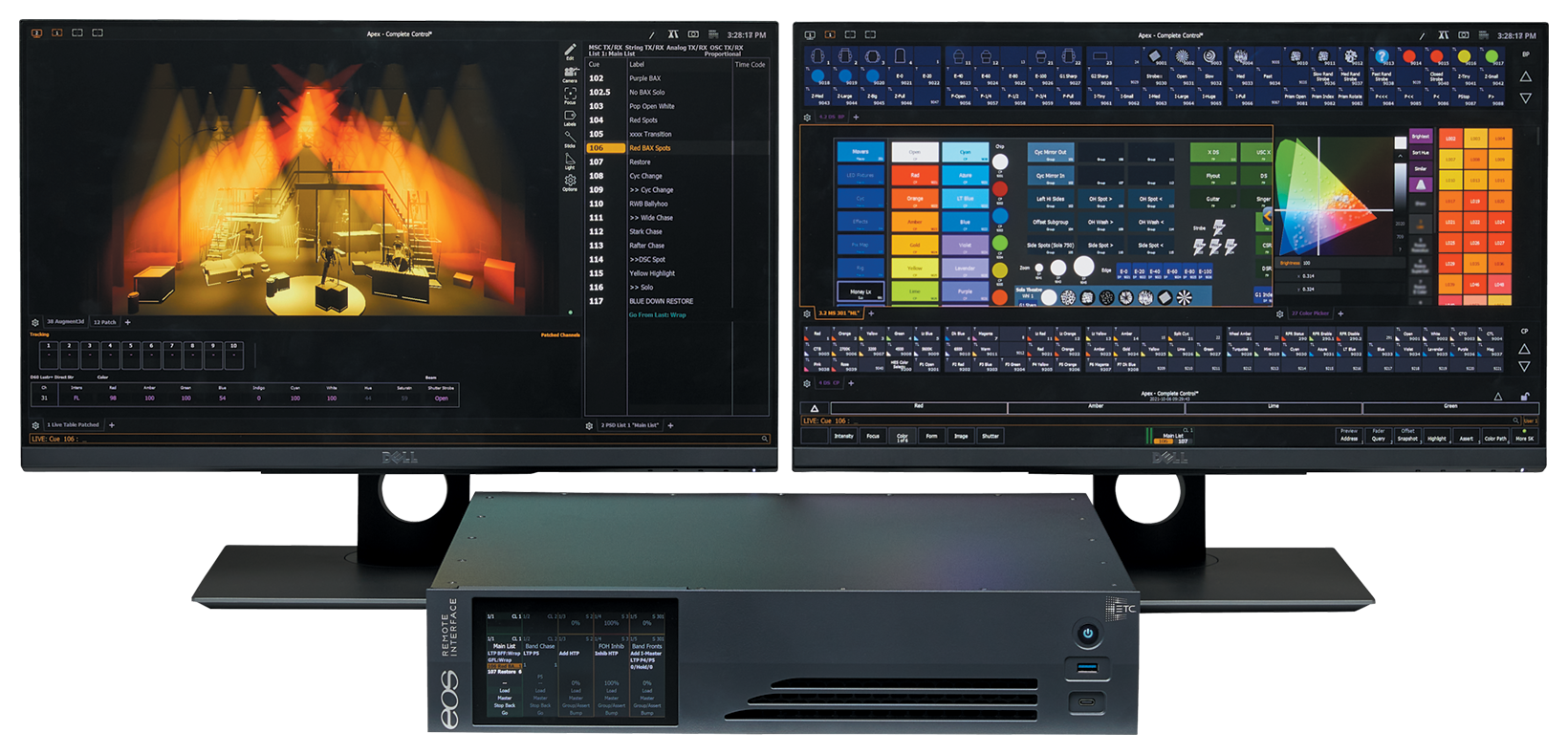
The Eos Remote Interface provides the same access to your system as a console - without the added cost of output control. Perfectly at home on a tech table or in an equipment rack, the Remote Interface supports up to three 4K multi-touch monitors and connects to your Eos Family lighting controller through Ethernet.
Setup Guide
Prepare your Eos Remote Interface for use with the following setup steps.
Note: The ports and port layouts pictured in this section are for general identification and orientation. See the Physical Overview below for details specific to your Eos Remote Interface.
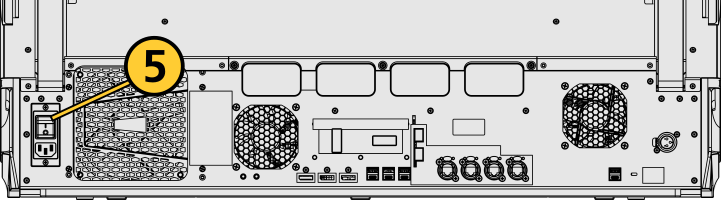
- Insert the included power cord, locking it into the IEC socket under the hard power switch on the back of the Eos Remote Interface. Connect the other end of the cord to wall power.
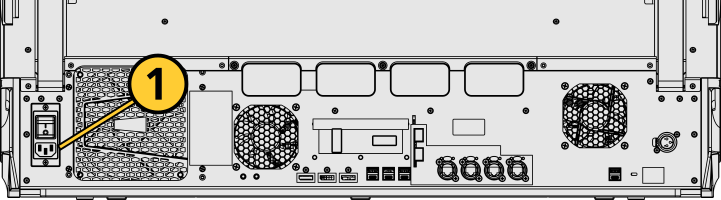
CAUTION: Power cord must be connected using an earth ground connection.
- Connect any external monitors to the appropriate device ports, as well as their own power sources.
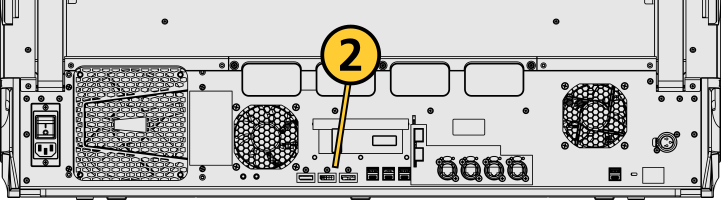
- Connect any USB devices, such as an external mouse or the included keyboard.
- Connect any network cabling to the appropriate Ethernet port.
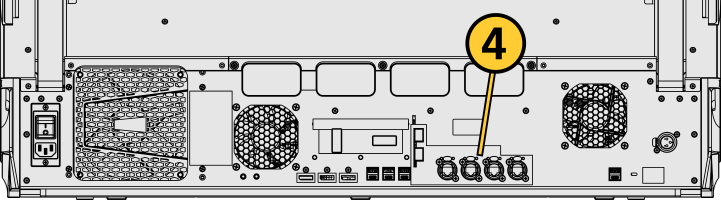
- Activate the hard power switch above the IEC socket.
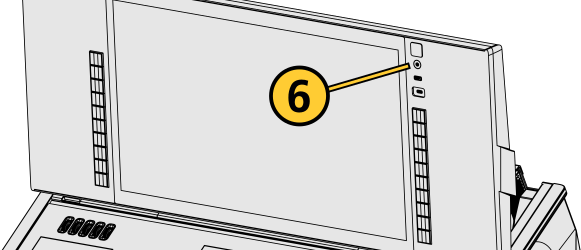
- Activate the soft power button on the front or top of the Eos Remote Interface.
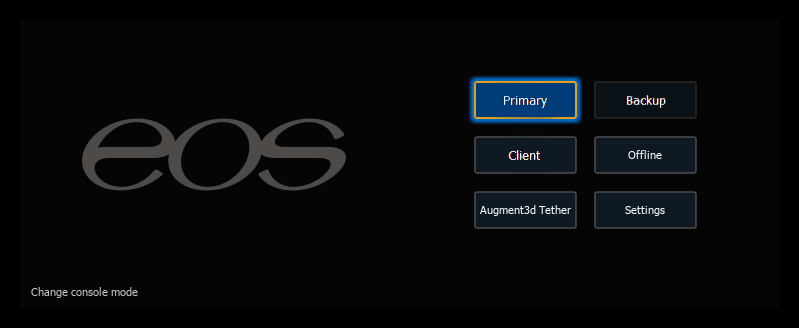
- Choose one of the Supported Eos Device Roles to log into the Eos application.
Once your Eos Remote Interface is up and running, Get Started with information about Eos System Requirements and Setup, Eos Family Resources, and Using This Manual.
Physical Overview
Power
Power Button
The soft power button on the front of the Eos Remote Interface is used to power it up or down.
You can also power down your device using Browser > {Power Off Device}.
CAUTION: It is recommended that you safely power down before physically disconnecting power from the device.
Hard Power Switch
A separate hard power switch, located on the rear panel above or below the power cord socket, supplies or disconnects power from the console’s internal components.
WARNING: Before servicing your console, you must switch off the power on the rear panel and disconnect the power cord completely.
Internal Touchscreens
The Eos Remote Interface is designed with a single internal touchscreen display, supporting haptic feedback or pressure-sensitive touch.
Touchscreen brightness can be controlled via Setup > Device > Brightness Settings and Presets.
External Monitors
For monitor configuration, see {Monitor Arrangement...}.
Ethernet ports can be used to connect your device to Network Switches, gateways, and other network devices. Each port can be run as a separate Network Interface Card (NIC), and can be configured to directly output network-based lighting control protocols such as Streaming ACN (sACN) or Art-Net.
See Patch > Protocols and Setup > Device > Network.
Note: Eos software v3.2.0 and later, Apex consoles, Windows 10 consoles, and ETCnomad devices do not support Net2 or AVAB UDP output protocols.
Dimensions and Weights
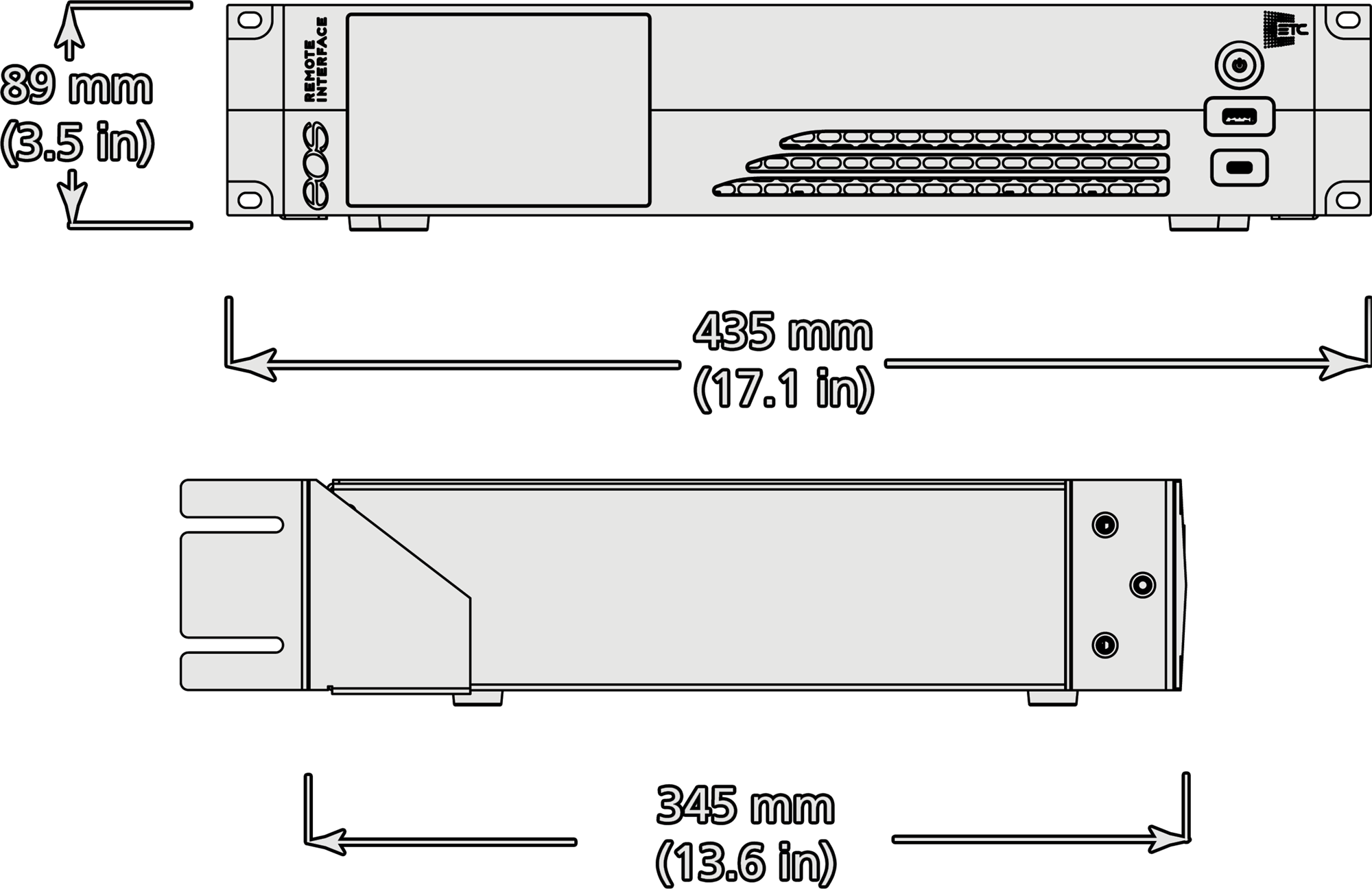
| Model | Height | Width | Depth | Weight | ||||
|---|---|---|---|---|---|---|---|---|
| mm | in | mm | in | mm | in | kg | lb | |
| Eos Remote Interface | 89 | 3.5 | 435 | 17.1 | 345 | 13.6 | TBD | TBD |
| Eos Remote Interface in shipping container | 343 | 13.5 | 604 | 23.8 | 343 | 13.5 | TBD | TBD |
Ships With
- One three-button scroll mouse and mousepad.
- Cherry tenkeyless backlit alpha-numeric keyboard.
- Locking regionalized IEC power cord.
- One 24-inch LED gooseneck Littlite.
- Augment3d AR target kit.
- Dust cover.
Features, Specifications, and Requirements
Minimum Eos Software Version
The Eos Remote Interface requires Eos software v3.1.1 or later.
Supported Eos Device Roles
Eos Family device roles determine the device's behavior and abilities, primarily in Multi-Console Sessions. Roles can be chosen from the ECU Welcome Screen, which can be accessed on device startup or by exiting the Eos application to the shell via Browser > Exit.
The Eos Remote Interface supports the following Eos Device Roles:
- Host - previously "Master," the Host is whichever of these devices is currently leading the session:
- Client - any device logged in as a full-time participant of the session, with no ability to become a Host.
- Expansion Processor (EEP) - a device logged into Expansion Processing mode for processing and outputting additional universes of data.
- Backup Eos Expansion Processor (BEEP) - a device logged into Expansion Processing mode, assigned to track an EEP and take over in the event of failure.
- Offline - any device that has been logged into Offline mode, which may be on a network, but is not connected to a session and is not outputting.
Any device that was logged in but is no longer able to communicate with a session will appear as Disconnected.
Capacities
- Channels - 32,768 (can be any number from 1 to 99,999).
- Cues - 10,000.
- Cue Lists - 999.
- Record Targets
- Groups - 10,000.
- Palettes - 10,000 x 4 (Intensity, Focus, Color, Beam).
- Presets - 10,000.
- Effects - 10,000.
- Macros - 99,999.
- Snapshots - 10,000.
- Curves - 10,000.
- Color Paths - 10,000
Electrical and Thermal
- Power Consumption - approximately 1 A at 120 V or 230/240 V
- Ambient Room Temperature - 0°–35°C (32°–95°F)
- Ambient Humidity - up to 90% non-condensing
Regulatory and Compliance
- CE compliant
- cETLus listed
- UKCA marked
- FCC compliant
- RoHS compliant
- WEEE