Eos Device Roles
Eos Family device roles determine the device's behavior and abilities, primarily in Multi-Console Sessions. Roles can be chosen from the ECU Welcome Screen, which can be accessed on device startup or by exiting the Eos application to the shell via Browser > Exit.
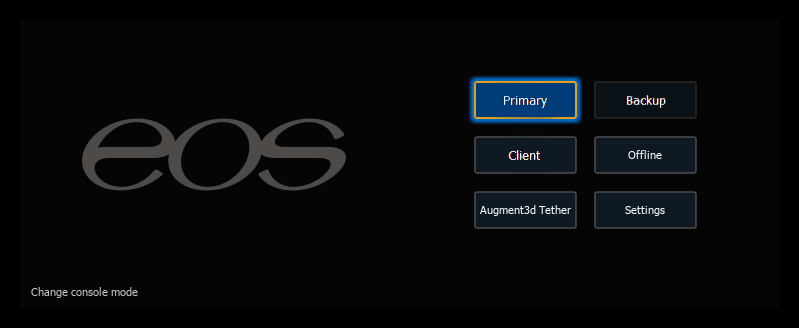
Some roles are not available on all devices; see the respective overviews in Eos Family Product Overview and Setup for details on which roles a device supports.
Host
All Eos sessions, regardless of how many devices they include, require one Host device to run the session and operate the system. The Host is whichever device is currently in control of the system; it is not a selectable mode from the ECU Welcome Screen.
In a single-device session, the Host and the Primary are one and the same. In a multi-console session, the Host will typically be the Primary. If connection to the Primary is lost and a Backup is assigned to take control of the system, the Backup becomes the Host.
Primary
A single Eos Family device should generally be run as a Primary. Eos devices boot into Primary by default.
In a multi-console session, the Primary is the device that Backup and Client consoles synchronize with, making it the source of all information for other devices in the session as well as the device that will be backed up.
Backup
A Backup is capable of taking control of the system if the connection to the Primary fails. You may input data and run your show from a Backup. There can only be one Backup in an Eos session and you must specify which Primary it is backing up.
Backup requires a Primary device be online to synchronize. Once this is done, the Backup downloads all show data for use in the event that it needs to take control of the lighting system. Consoles in this mode will not have control of the lighting system unless the connection to the Primary is lost. If the Primary fails, the Backup will offer to take control of the system or troubleshoot the problem. You can set the Backup to automatically take control. While the Primary remains in control, the Backup will behave as a Client would.
Client
Client devices can act as remote controllers or video stations for a system, but cannot output to or control the lighting equipment.
Client data is sent and received over the network, and Clients will synchronize with a designated Primary.
User ID determines some interaction between the Client and other devices. If the Client and the Primary console have the same user ID, they will act as one. If they have different user IDs, they will have separate command lines.
By default, Client and Backup devices do not output from their DMX ports. Local DMX output can be enabled via Setup > Device > Local Output > {Output In Client Mode}.
Expansion Processor (EEP)
Expansion Processor devices enable the use of Eos Expansion Processing in multi-console sessions, which allows Eos to distribute output processing between multiple hardware devices. Each Expansion Processor is assigned one or more universes of addresses to output, up to their individual output count.
A device logged in as an Expansion Processor may perform one of two roles:
- Eos Expansion Processor (EEP) - contributes to the overall session capacity and outputs assigned universes of addresses to the system.
- Backup Eos Expansion Processor (BEEP) - assigned directly to a specific EEP to take over output of that device's universes if it goes offline.
The Expansion Processor login role should not be confused with the Eos Expansion Processor, a dedicated rackmount expansion processing device that can only act as an EEP or a BEEP.
The Eos Expansion Processor, dedicated expansion processing devices, and devices logged in as an Expansion Processor (EEP) have a minimal configuration and health user interface instead of the full Eos display, with a default screen and four sub-menus which can be accessed with the menu button in the top left. Connected monitors will display the same user interface, which can be interacted with via internal and external touchscreens.
Offline
Primarily intended for show file editing, Offline devices cannot output to or communicate with the rest of a network. Any changes to show data from an Offline device can only be saved locally, and will not affect other Eos devices or the entertainment control network.
ETCnomad on Windows and macOS Only
Augment3d Tether
Available for Running Augment3d on a connected ETCnomad computer with or without a dongle.
Offline w/viz
Available when running unlicensed ETCnomad software without a dongle. This role is only intended to be used with visualizer software, and does not output entertainment control data.