ETC Puck
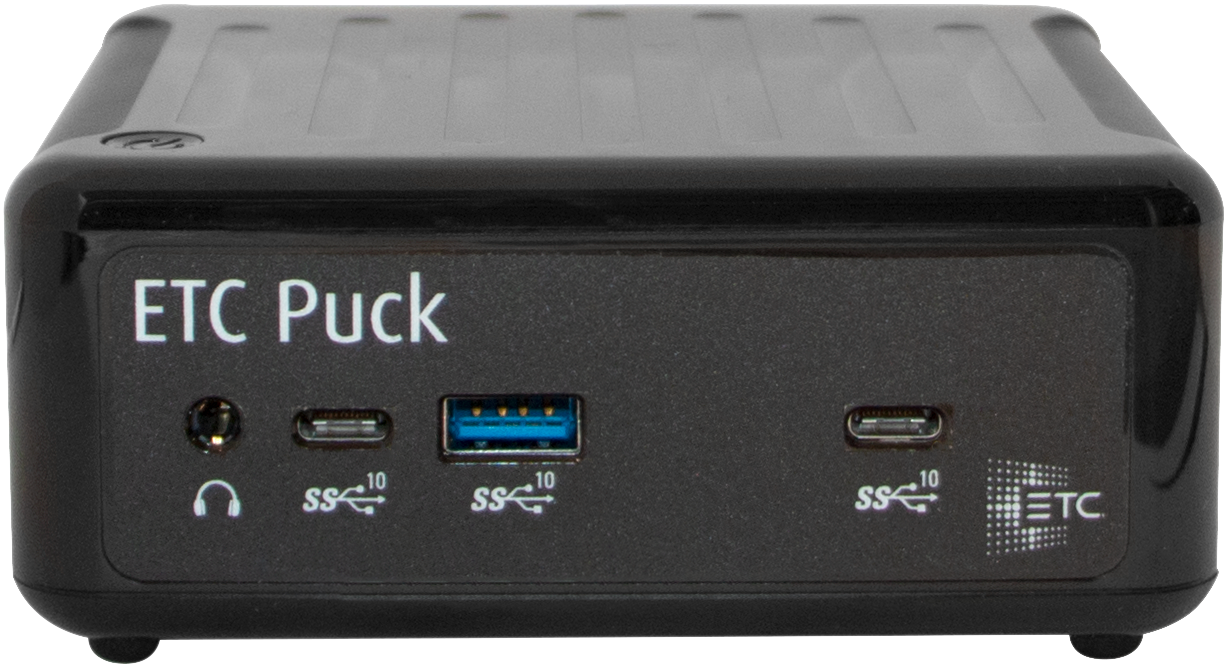
The ETC Puck lighting controller is a full-featured mini-computer with an embedded ETCnomad lighting control USB dongle capable of running Eos and Element applications in Primary, Backup, Client and Offline environments.
Setup Guide
Prepare your ETC Puck for use with the following setup steps.
Note: The ports and port layouts pictured in this section are for general identification and orientation. See the Physical Overview below for details specific to your ETC Puck.
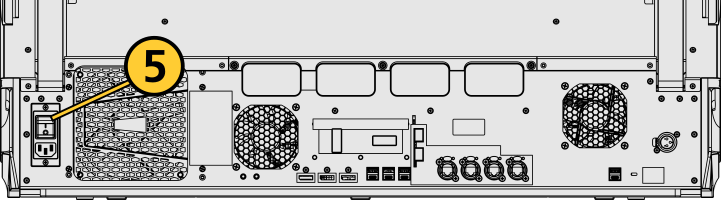
- Insert the included power cord, locking it into the IEC socket under the hard power switch on the back of the ETC Puck. Connect the other end of the cord to wall power.
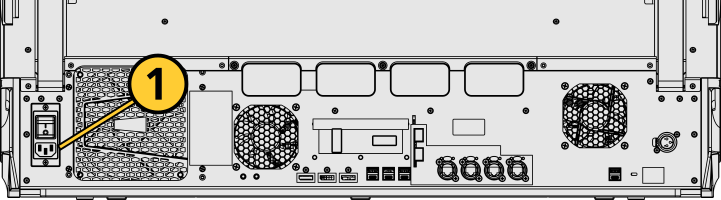
CAUTION: Power cord must be connected using an earth ground connection.
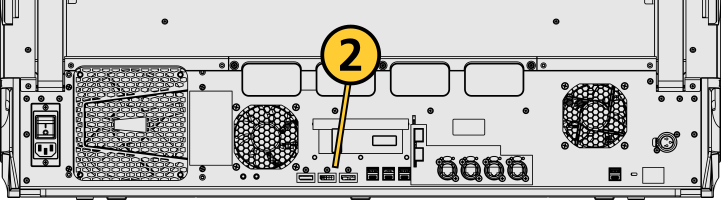
- Connect any external monitors to the appropriate device ports, as well as their own power sources.
- Connect any USB devices, such as an external mouse or the included keyboard.
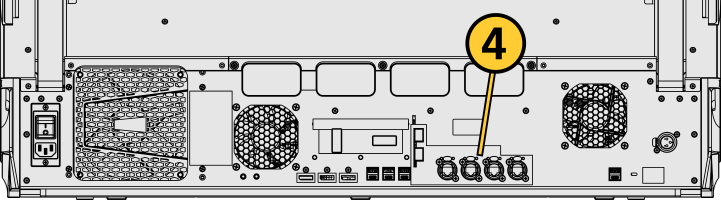
- Connect any network cabling to the appropriate Ethernet port.
- Activate the hard power switch above the IEC socket.
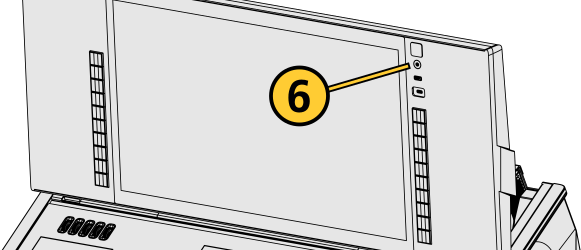
- Activate the soft power button on the front or top of the ETC Puck.
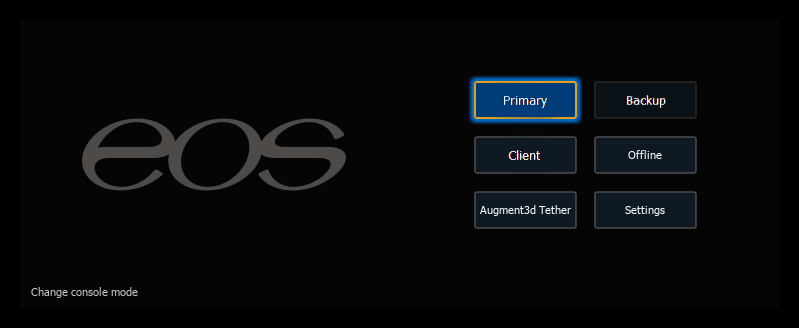
- Choose one of the Supported Eos Device Roles to log into the Eos application.
Once your ETC Puck is up and running, Get Started with information about Eos System Requirements and Setup, Eos Family Resources, and Using This Manual.
Physical Overview
Power
Power Button
The soft power button on the top left of the ETC Puck is used to power it up or down.
You can also power down your device using Browser > {Power Off Device}.
CAUTION: It is recommended that you safely power down before physically disconnecting power from the device.
External Monitors
CAUTION: Devices without internal monitors that run Eos software (Ion Xe, Ion Xe 20, Element 2, ETC Puck, Ion Classic, and Element Classic) must have at least one external monitor connected for the Eos application to initialize.
Monitor Specifications for Display Port Devices
- Display resolutions from 1920x1080 to 3480x2160 (4K) are supported.
- Each display may be utilized in landscape or portrait mode.
- Multi-touch display support requires:
- Data connection via USB-A or USB-C cable per multi-touch monitor.
- Windows Human Interface Device (HID) compliant touch displays, utilizing Windows standard driver.
- Displays must process five or more points of simultaneous touch.
- Display Data Channel / Control Interface (DDC/CI) is supported for control of external monitor brightness.
External monitors that support Display Data Channel / Command Interface (DDC/CI) via Display Port can be dimmed from Eos via to Setup > Device > Brightness Settings and Presets.
For monitor configuration, see {Monitor Arrangement...}.
Ethernet Ports
Ethernet ports can be used to connect your device to Network Switches, gateways, and other network devices. Each port can be run as a separate Network Interface Card (NIC), and can be configured to directly output network-based lighting control protocols such as Streaming ACN (sACN) or Art-Net.
See Patch > Protocols and Setup > Device > Network.
Note: Eos software v3.2.0 and later, Apex consoles, Windows 10 consoles, and ETCnomad devices do not support Net2 or AVAB UDP output protocols.
USB Ports
Data Ports
USB A and C ports are provided on the front and rear of your device, and in the keyboard tray, when present. USB ports can be used to connect peripherals such as storage devices, alphanumeric keyboards, pointing devices, and touchscreen control for external monitors.
USB data ports cannot be used for charging devices.
Dimensions and Weights
| Model | Height | Width | Depth | Weight | ||||
|---|---|---|---|---|---|---|---|---|
| mm | in | mm | in | mm | in | kg | lb | |
| ETC Puck | 28 | 1.1 | 118 | 4.6 | 110 | 4.3 | 0.91 | 2.0 |
Ships With
- VESA 100x100 mm mounting plate.
- Power supply and detachable plug cable (IEC-320-C5 to NEMA 5-15P).
Features, Specifications, and Requirements
Minimum Eos Software Version
The ETC Puck requires Eos software v3.2.8 or later.
Supported Eos Device Roles
Eos Family device roles determine the device's behavior and abilities, primarily in Multi-Console Sessions. Roles can be chosen from the ECU Welcome Screen, which can be accessed on device startup or by exiting the Eos application to the shell via Browser > Exit.
The ETC Puck supports the following Eos Device Roles:
- Host - previously "Master," the Host is whichever of these devices is currently leading the session:
- Client - any device logged in as a full-time participant of the session, with no ability to become a Host.
- Offline - any device that has been logged into Offline mode, which may be on a network, but is not connected to a session and is not outputting.
Any device that was logged in but is no longer able to communicate with a session will appear as Disconnected.
Available Outputs
The ETC Puck is available with 1,024 (minimum) or 6,144 (maximum) outputs.
Capacities
- Output Parameters - 1,024 (minimum) or 6,144 (maximum).
- Channels - 32,768 (can be any number from 1 to 99,999).
- Cues - 10,000.
- Cue Lists - 999.
- Record Targets
- Groups - 10,000.
- Palettes - 10,000 x 4 (Intensity, Focus, Color, Beam).
- Presets - 10,000.
- Effects - 10,000.
- Macros - 99,999.
- Snapshots - 10,000.
- Curves - 10,000.
- Color Paths - 10,000
Electrical and Thermal
- Power Consumption - approximately 1.6 A at 120 V or 230/240 V.
- Ambient Room Temperature - 0°–35°C (32°–95°F).
- Ambient Humidity - up to 90% non-condensing.
Regulatory and Compliance
- CE compliant
- cULus listed
- FCC compliant
- RoHS compliant
- WEEE