ETCnomad
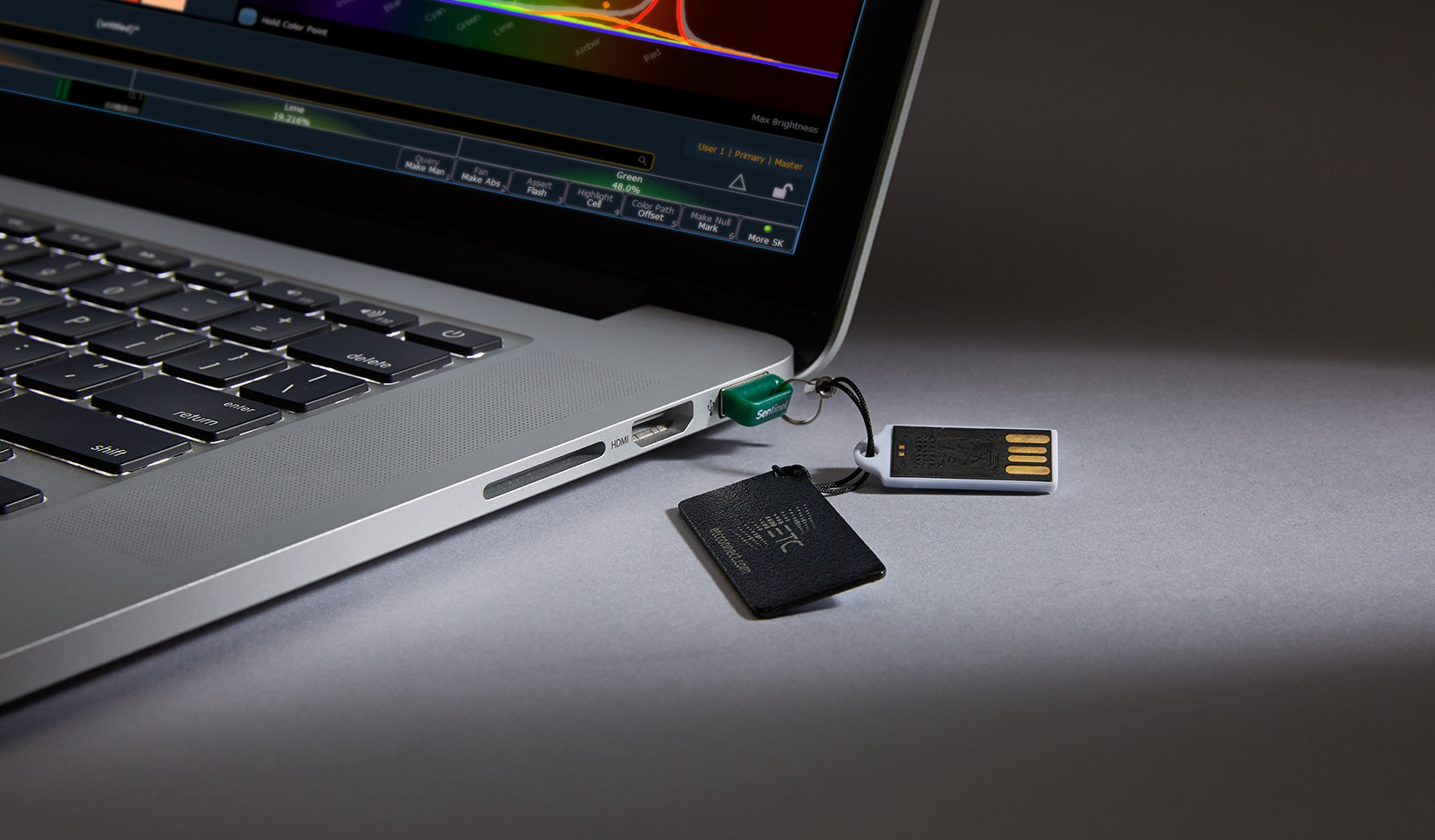
Full-featured Eos software is available for free download and installation on Windows and macOS to create or edit show files for any Eos Family controller. An ETCnomad key connected to the computer via USB allows Eos to directly control conventional and LED luminaires, moving lights, and media servers, and allows the computer to act as a backup for Eos Family controllers, or to join larger systems as a client.
Setup Guide
Download the Eos v3.3.6 software and learn more at etcconnect.com/eos-software.
To learn more about Eos, Get Started with information about Eos System Requirements and Setup, Eos Family Resources, and Using This Manual.
Hardware Requirements
- Computer running Windows 7 (64-bit) or later, or macOS 13 (Ventura) or later
- Multicore processor with clock frequency higher than 2.0 GHz
- 3.5 GB free disk space or higher
- 2 GB RAM or higher
- Screen resolution of 1920x1080 or higher
- 64 MB video card or higher
- Direct X 11 or higher installed (Windows only)
- RJ-45 Ethernet network adapter (required to communicate with a lighting network and gateways for output)
- USB-A ports for connection of ETCnomad license key and output accessories
ETCnomad is also compatible with ETC Cobalt and Hog 4 PC software. Cobalt software is not compatible with macOS 15 (Catalina) and later.
Installation Instructions
If necessary, first download the Eos v3.3.6 software from the link above, transfer the zipped folder to a USB storage device, and insert it into the desired device.
- On Eos Family hardware:
- Navigate to Settings > General in the ECU by exiting Eos via Browser > Exit, or by selecting {Launching in...} as the device boots.
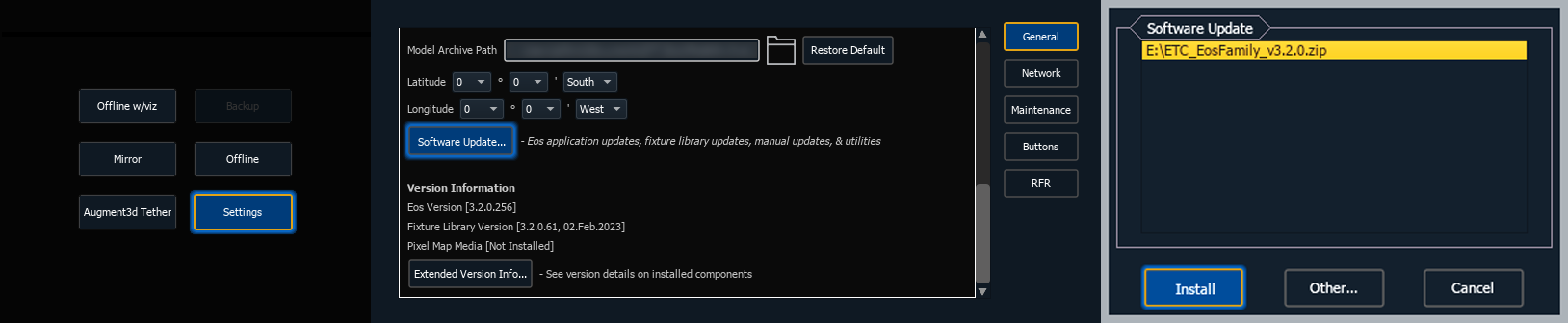
- Scroll to and select {Software Update...}. Any valid Eos installers detected will appear in a pop-up list.
- Select {Install} and follow the instructions to install Eos v3.3.6. Your device will automatically restart when the installation is complete.
- Navigate to Settings > General in the ECU by exiting Eos via Browser > Exit, or by selecting {Launching in...} as the device boots.
- On Windows or macOS:
- Double-click to unzip the zipped folder.
- Open the folder and double-click on the ETCnomad installer. The Windows installer is an EXE file; the macOS installer is a PKG.
- Follow the instructions to install Eos v3.3.6. You will be prompted to restart your computer to complete the installation.
CAUTION: In order for multiple Eos Family devices to connect (including consoles, processors, video interfaces, and Eos on Windows and macOS), all devices must be running the same software version, have the same fixture library version installed, and be set to the same language, or they will not connect.
Getting Started
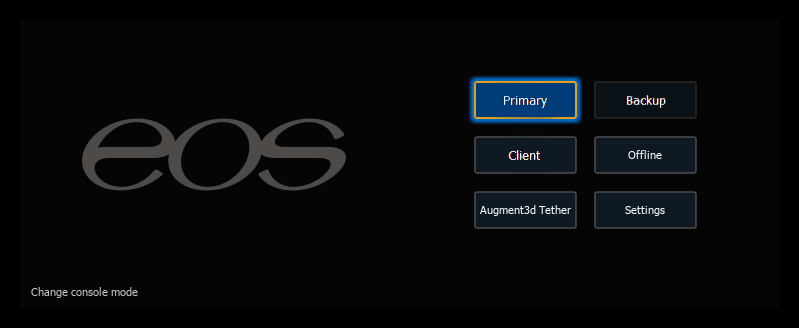
Once ETCnomad is installed and running, you may select one of the Supported Eos Device Roles from the menu to log into the application. Available roles will change depending on the detected ETCnomad USB key. Eos software can be run as an offline editor or in mirror mode when a dongle is not present.
To include the computer in Multi-Console Sessions, you must be connected to the same network as any other Eos Family devices, and follow all other Eos Device Network Configuration setup steps.
Lighting Control Output
Network outputs may be distributed via Ethernet protocols (sACN or Art-Net) directly to devices, or via compatible Ethernet distribution hardware, such as ETC Response DMX/RDM Gateways.
DMX output may be distributed using an ETC Gadget or Gadget 2 USB to DMX/RDM converter. Up to four Gadgets may be connected to a single computer.
Physical Overview
Dimensions and Weights
| Model | Height | Width | Depth | Weight | ||||
|---|---|---|---|---|---|---|---|---|
| mm | in | mm | in | mm | in | kg | lb | |
| ETCnomad Key | 26 | 1.0 | 84 | 3.3 | 84 | 3.3 | 0.10 | 0.2 |
Ships With
- ETCnomad USB A key.
- USB drive with software and instructions.
- Tag with serial and ID numbers.
- Storage box.
Features, Specifications, and Requirements
Supported Eos Device Roles
Eos Family device roles determine the device's behavior and abilities, primarily in Multi-Console Sessions. Roles can be chosen from the ECU Welcome Screen, which can be accessed on device startup or by exiting the Eos application to the shell via Browser > Exit.
The ETCnomad key supports the following Eos Device Roles:
- Host - previously "Master," the Host is whichever of these devices is currently leading the session:
- Client - any device logged in as a full-time participant of the session, with no ability to become a Host.
- Offline - any device that has been logged into Offline mode, which may be on a network, but is not connected to a session and is not outputting.
- Offline w/viz - allows output for visualizers only in Eos for Windows and macOS.
Any device that was logged in but is no longer able to communicate with a session will appear as Disconnected.
Available Outputs
The ETCnomad key is available with 1,024 (minimum) or 6,144 (maximum) outputs.
Capacities
- Output Parameters - 1,024 (minimum) or 6,144 (maximum).
- Channels - 32,768 (can be any number from 1 to 99,999).
- Cues - 10,000.
- Cue Lists - 999.
- Record Targets
- Groups - 10,000.
- Palettes - 10,000 x 4 (Intensity, Focus, Color, Beam).
- Presets - 10,000.
- Effects - 10,000.
- Macros - 99,999.
- Snapshots - 10,000.
- Curves - 10,000.
- Color Paths - 10,000