Controls
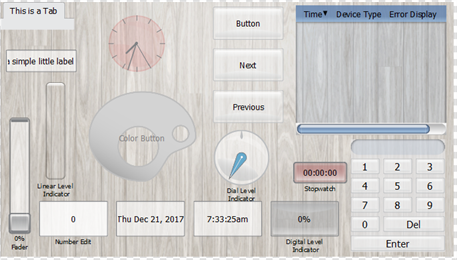
Controls are objects that can be assigned to activate, deactivate, or show status of items within the Paradigm control system. ControlDesigner provides multiple control types for use on a touchscreen configuration page including:
|
|
Note: Navigation controls, displayed above as Next and Previous, can be added when a new configuration page is created, when a new page is added to a configuration, or after the page has been created and controls are added to the page.
Add a New Control
Selecting a control from the Controls Toolbar enters draw mode where you can begin drawing your controls on the page.
- Enter Draw Mode by selecting a control from the toolbar.
- When draw mode is enabled and the mouse is hovered over the Page workspace, the mouse cursor changes to a mouse pointer with a "+" symbol.
- After selecting the type of control you wish to add to the page, simply click and draw the selected control to the size of your choice on the Page workspace.
- You will be able to draw multiple controls of the same selected type until you exit draw mode (press Esc) or select a new control type to add to your configuration.
Exit Draw Mode
To exit draw mode, click on the [Select Mode] button  in the toolbar or press (Esc) on your alphanumeric keyboard.
- [Select Mode] - When selected, changes the tool to a selection tool for selecting graphics or page elements.
- [Add Page] - When selected, displays the Add Page wizard for configuration selection.
- [Add Popup] - When selected, enables draw mode. Click to select a location on the graphic LCD and drag to draw the shape for the popup.
- [Add Tabs] - When selected, enables draw mode. Click to select a location on the graphic LCD and drag to draw the tab.
- [Add Frame] - When selected, enables draw mode. Click to select a location on the graphic LCD and drag to draw the frame.
- [Add Calendar] - When selected, enables draw mode. Click to select a location on the graphic LCD and drag to draw the calendar frame.