Add Stations in the Design view
Control stations and sensors can be added to the Design view by simply dragging and dropping the station from the Station Library into the Plan workspace. Stations in the library are shown by Manufacturer, and in the case of the ETC's stations and sensors, ETC Paradigm or ETC Heritage.
Note: The Paradigm Network Station Power Supply (P-NSPS-D) is added to a project through the Browser, not through a library.
ETC Paradigm Stations
Paradigm Inspire Stations, ETC Paradigm Touchscreen stations, Virtual Touchscreen (server projects only), wireless and docking station accessories, Occupancy and Photo Sensors, and the Echo Expansion Bridge are located in the station library under the manufacturer "ETC Paradigm".
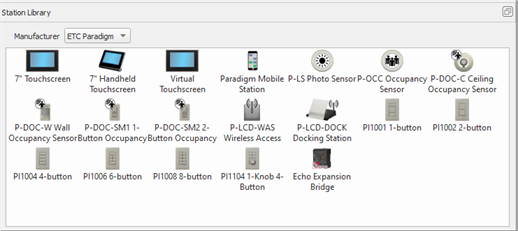
Drag and drop an ETC Paradigm station from the library into the Design view. As the station is dropped into the workspace the Property Editor populates with properties, control, and indicator assignments that are specific to the object type depending on the preferences set for new stations, See Objects Preferences.
Reference the following sections:
- Station Properties
- Button and Slider Properties
- Occupancy Sensor Properties
- Photo Sensor Properties
- Echo Expansion Bridge Properties
- Paradigm Mobile Station Properties
For added convenience you can cut, copy, paste, delete and duplicate a station from the Design view.
Paradigm Sensors
Reference the following section:
Paradigm Touchscreens and Wireless Accessories
Reference the following sections:
Echo Expansion Bridge
Reference the following sections:
- Echo Expansion Bridge and the Echo System Capabilities
- Configuring the Echo Expansion Bridge
- Retrieve Echo Configuration
- Upload Echo Configuration
- Echo Expansion Bridge Properties
Paradigm Mobile Button Station
Reference the following sections:
ETC Heritage Stations
ETC Heritage stations are located in the selected Manufacturer "ETC Heritage".
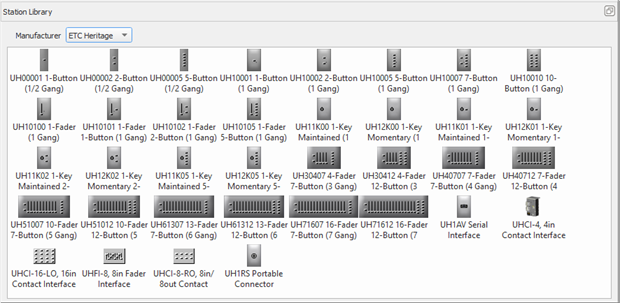
Drag and drop a station into the Design view Plan workspace. As the station is dropped into the workspace the Property Editor populates with properties, control, and indicator assignments that are specific to the object type, and depending on the preferences set for new stations, See Objects Preferences.
Reference the following section:
For added convenience you can cut, copy, paste, delete and duplicate a station from the Design view.