Pixel Mapping in a Multi-Console System
When using file based media in a multi-console environment, the primary console should be used as the ‘base’ media archive.
Media can be imported to the primary, and the backup console and / or any other clients can then synchronize their own, local media archives with the primary. The backup must synchronize media with the primary in the event that the backup must take control as the master. For clients, synchronizing the media is optional but useful if you wish to see the media playing back in the Pixel Map Preview display.
Configuring Multi-Console Pixel Mapping
Once the Eos Family Pixel Mapping Installer has been installed on all consoles, you can configure your multi-console system.
On the Primary, exit to the ECU Welcome Screen and navigate to Settings > General. Ensure that the {Share Media Archive} box is checked. This will allow for sharing of the primary’s media archive. Copy the path name, as you will need it to set up any Backups or Clients.
Backup and Clients
- On the backup or client, exit to the Eos Configuration Utility (ECU).
- Press the {Settings} button.
- Press {Maintenance}.
- Press {Network Drives}.
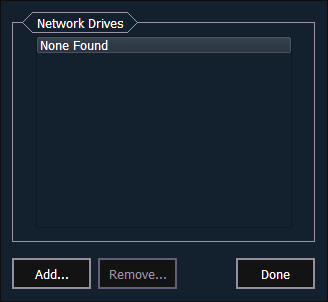
- In the Network Drives display, click the {Add} button.
- In the Add Network Drive display, choose a drive letter for {Local Drive}.
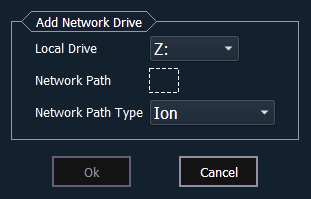
- Enter in the {Network Path}. The path name is listed next to the primary’s {Share Media Archive} checkbox.
- Select the appropriate console type for the {Network Path Type}.
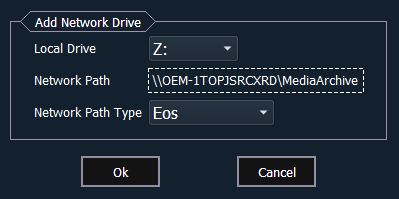
- Click {Ok}. You will now be able to access the primary’s media archive from the backup or client. This new drive will appear in the browser like a USB drive.
- Click {Done} and launch the Eos application.
Synchronizing Media Archives
To view media playback in the pixel map preview display, you will need to first import the required media into your backup and / or client’s local media archive. This is done from the browser. There are two options for importing media:
- Import Show Pixel Map Media - this import function should be used by any backups and clients. It is the easiest way to ensure that your console will have all of the media required by the current show file.
- Import All Pixel Map Media - this import function should be used by the primary to load the base media content and later to load media on the fly as required. This import function provides more complex options, like targeting which library and file the media data will be imported into. See Pixel Map Media.
Synchronize pixel map media with the following steps:
- On the backup or client, navigate to the browser.
- Expand File > Import > Import Pixel Map Media > Import Show Pixel Map Media.
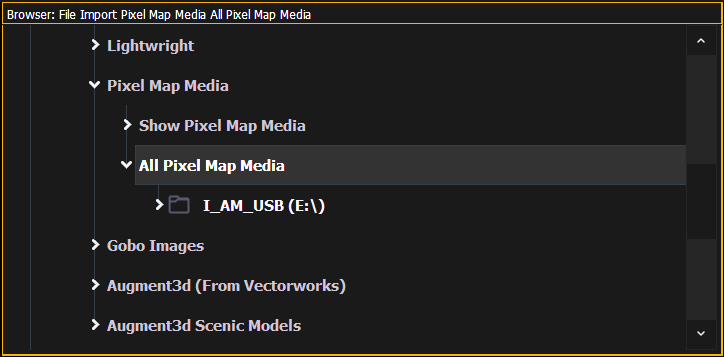
- Select the appropriate network drive.
- The Import Show Media display will open. Press the {Start Import} button.
- A progress bar will appear to indicate the status of the import process. When finished, click {Done}. You will now be able to see the media playing in the pixel map preview display on any backups or clients.