Import Custom Resources
An advanced user can import a custom fixture, font, station, and a custom script file using the "Import Custom Resources" feature in the File menu. With the exception of importing a custom font, all other custom resources are created by ETC for customers that have a unique requirement the standard features in LightDesigner do not fulfill. Contact ETC Applications Engineering or ETC Technical Services for details when a custom resource is required (etcconnect.com/contactETC).
Guidelines For Use
Guidelines for use of the "Import Custom Resources" feature:
- When importing custom fixture or station files, LightDesigner will accept file type *tar.gz.
- When importing a custom font, LightDesigner will accept file types *.otf (OpenType Font), and *.ttf (TrueType Font). See Import Fonts for more information about custom fonts.
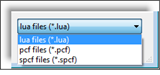
- When importing a custom script, LightDesigner will accept file types *.lua, *.pcf or *.spcf.
- The selected custom imported file will post into the respective library directory for the LightDesigner installation.
Note: If a *.pcf or *.spcf file contains custom scripts, other users can import those custom scripts into their own resource libraries using the "Import Custom Script" feature.
- Although custom files can be removed from a library if needed (contact ETC Technical Services for assistance etcconnect.com/contactETC), imported (custom) files should be thought of as permanent additions to the LightDesigner libraries. This means they are available to any configuration, every time LightDesigner is opened.
- During the import operation, if there is a filename conflict, you will be prompted to overwrite existing files of the same name with the different content. Only new files are imported, any attempt to import the same file(s) twice yields a message that nothing new was imported.
- It is possible to override existing standard encrypted file content (standard library data) by adding custom files that match the original filename (for *.lua scripts) or ID number (for stations and fixtures) internal to the encrypted definition files.
Note: Overriding existing standard library data does not alter the contents of the encrypted library resource file, it merely overrides its content.
Once a custom resource is imported, LightDesigner offers three ways to differentiate custom resources from standard resources in your library files including; permanent, temporary, and orphan.
Permanent
Permanent custom resource additions permanently added to the standard LightDesigner resource libraries and are made available every time LightDesigner is opened. Names of permanent custom objects appear with (custom) appended in the station library.
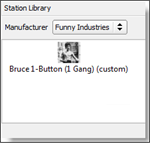
Add permanent files to the library resource folders using the import custom feature from the File menu (preferred method) or by manually adding them to the resource folder.
Temporary
A temporary resource addition has been made temporarily available within resource libraries, allowing a user to create new instances of that resource without permanently affecting the standard installed library resources. See Temporary Font Usage for information about how LightDesigner manages temporary font usage. Other temporary custom resources appear with (config) appended to the name. These resource additions can be temporarily added simply by opening (importing) a .pcf file that contains them, and will remain available until LightDesigner is closed.
 Temporary Additions to Resource Libraries
A *.pcf (v1.2 or later) or *.spcf (v2.0 or later) file can contain custom fixture, custom station, and custom script files. To bundle these files together when saving, the files must reside in the proper resource libraries at the time of *.pcf or *.spcf creation.
The fixture, station, or script files will be marked with either the (custom) or (config) suffix designation; which is also appended to the control function name in the property editor and in the "Set Control Function" dialog.
Importing a *.pcf that includes custom files will temporarily add those custom items to your libraries, allowing you to reuse them without permanently affecting the standard libraries of the LightDesigner installation.
Guidelines for use of this temporary import feature:
- Files will be temporarily available for use from the time the *.pcf or *.spcf is imported until the LightDesigner application is closed.
- Temporarily unavailable custom fixtures and stations marked with (config) will appear in their respective libraries and allow you to add new instances of them into the open configuration.
- Temporarily available custom scripts appear alongside standard scripts marked with (config).
Orphan
Orphaned object instances are configuration objects for which there is no library support (i.e. object types that are not currently present in the corresponding resource library). Orphaned object instances are not new, and users may have previously seen examples of orphaned scripts where the object name appears with (orphan) appended.
Resource Import Procedure
Custom resources, aside from fonts, are provided by a Developer user of LightDesigner. Typically, ETC Technical Services or an ETC Applications Engineer will provide these custom resource files to a LightDesigner user on an as needed basis. The resource file should be stored to a location on the computer or removable memory device that LightDesigner can browse and locate for import.
Note: This procedure assumes that LightDesigner is already open.
- In the [File] menu, select "Import Custom Resources" and select the resource type to be imported from the fly out menu. The "Import Custom..." dialog displays for browsing and selection of the custom resource file.
- Browse to and select the custom resource file. Reference the section "Guidelines For Use" to determine which file type LightDesigner requires for each resource type.
For custom script files, the default file type that LightDesigner filters is a *.lua file type. Use the drop-down menu to change the filter selection to a different available file type if needed.
For custom font files, see Import Fonts.
- Click [Open]. A dialog will display for a successful import.
- Click [OK] to continue. Before the new custom resource is available for use in a project, you must close and restart LightDesigner.