Magic Sheet Editor
The magic sheet editor is where magic sheets are laid out, built, and edited using a variety of tools. Use the {Editor} arrow button on the right side of the magic sheet display to toggle the editor open and closed.
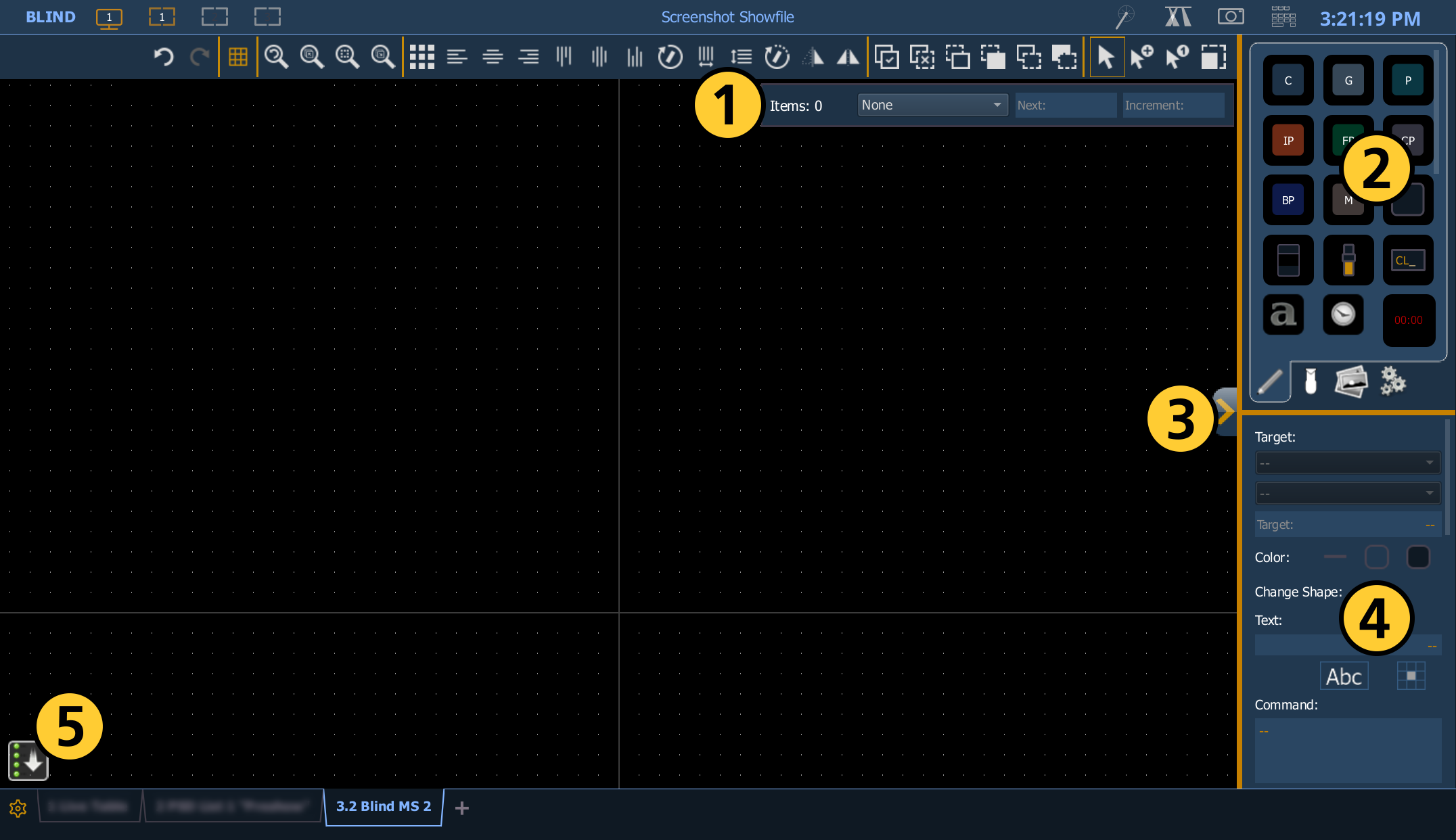
The magic sheet editor offers the following tools arranged around the magic sheet:
| 1 | Magic Sheet Layout Toolbar |
| 2 | Magic Sheet Object Library |
| 3 | {Editor} |
| 4 | Magic Sheet Object Inspector |
| 5 | {Quick Save} |
Hover a mouse cursor over a tool to see a tooltip with a description.
The sizes of the object library and object inspector can be adjusted by dragging the border between them up or down.
Magic sheets are oriented around an X and a Y axis, which are only visible in the editor. The intersection of these axes is considered the center of the magic sheet.
The maximum outer boundary of a magic sheet is marked by a red border, which can be seen when fully zoomed out. Objects cannot be placed outside the boundary.
{Quick Save}

An [Undo] restore point is saved whenever you exit the editor.
{Quick Save} allows you to create an undo restore point for the open magic sheet at any time. A green checkmark will temporarily appear next to the button when the magic sheet is successfully saved.
It is recommended that you {Quick Save} before making any major changes to the magic sheet that you think you might want to undo. [Undo] [Enter] will return the magic sheet to the last undo restore point.
Once the magic sheet editor is closed, saved changes will automatically propagate to all other Eos devices in Multi-Console Sessions.