RDM Device List
Before you can start using the RDM Device List, you must first enable {RDM} for the appropriate DMX ports in Setup > Device > Local Output, or for the appropriate ethernet ports via ECU Settings > Network > Device. RDM is disabled by default. If using Network RDM, this must be done via an ETC Net3 or Response Mk2 Gateway with RDM enabled on the DMX ports. The gateway needs to be running version 5.1 or newer.
Open the RDM Device List while in the patch display by pressing {Device List} > {RDM}.
You will need to make sure that {Device Discovery} is enabled.
{Device Discovery} is disabled by default. The {Device Discovery} option will not display if {RDM} is disabled in the ECU. {Device Discovery} will automatically disable when you leave the Patch display.
When the RDM device list is opened, the devices will be displayed in Patch by Address mode. At the top of the list is a RDM indicator. This indicator shows incoming and outgoing RDM traffic.
Eos will display the following information that it receives from the RDM devices:
- Address (a part will be added if multiple devices are discovered with the same address)
- Channel
- Label
- Manufacturer
- Model
- Footprint
Eos will also display what personality from the library the device matches in the Eos Type column. This information will not display until you first select the device. Once the device has been selected for the first time, Eos will extract the type information from the device and display it.
The following messages may display in the Eos Type column:
- No RDM Data Available - no model specific RDM data has been extracted from the device.
- Extracting RDM Commands - currently getting the command data from the device.
- Extracting RDM Fixture -currently getting the data required to create a fixture definition for the device.
- Extracting RDM Sensors - currently getting the sensor definitions from the device.
- Offline - no model specific RDM data has been extracted from the device and it is now offline.
With a device or devices selected, you can edit various device settings in the property view, which will display in the CIA. Items with a caret (>) are editable. When multiple devices are selected together for editing, an asterisk (*) will appear by data that is different between the selected devices.
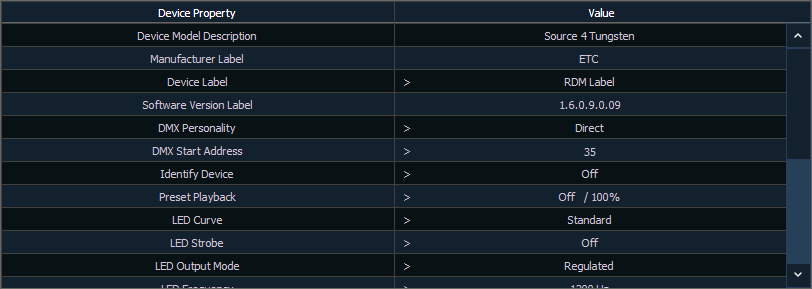
The following buttons will also display in the property view:
- {Device Properties} - opens the properties list for the selected RDM device.
- {Sensors} - displays if the selected device has sensors. Pressing {Sensors} will open the sensors list.
- {Lamp Controls} - displays if the selected device has lamp controls.Pressing {Lamp Controls} will open the lamp controls list.
- {Channel} - channel number of the selected device.
- {Address} - address of the selected device.
- {Device Discovery} - allows for discovery of RDM devices.
- {Ignore Errors} - when enabled, errors messages will not display in the live/blind displays. They will still display in about and the properties display in patch.
- {Reload RDM Data} - deletes the fixture data from the console and reloads it from the device.
- {Flash} - triggers the identify function of the RDM device. The identify function may defer between different manufacturers' devices. For example, Wybron scrollers identify by wiggling their gel back and forth.
Errors and Warnings
A red exclamation mark (!) or a yellow question mark (?) is used in Patch, Live (see Indicators in Live and Blind), Patch, [About] Channel, and [About] Address to indicate Eos has detected errors and warnings from connected RDM, CEM+, CEM3, or ACN devices. Use {!} or {?} to open the error list.
Errors and warnings are indicated based on severity using the following colors:
- Gray - unknown or not an error.
- White - an advisory: something that might be worth knowing about but likely won't affect system operation.
- Yellow - a warning: something you should know about that may affect system operation. Warning messages could include:
- Multiple device addresses overlap.
- A mismatch between the patched fixture type and the real fixture.
- A mismatch between the patched address and the fixture address.
- A device is offline.
- Red - an error: something definitively wrong that is likely or certain to affect system operation. Error messages could include:
- A circuit is over temperature (overtemp).
- A breaker has tripped.
- A lamp is out.
The relative severity of an error in any given device is determined by the device manufacturer.
Use {Clear Errors} to remove displayed errors from the list.