About Show Files
This section concerns show files, modular collections of all the data in your show, which are typically accessed and managed via the Browser in the Central Information Area (CIA). Show files can also be managed from the shell via the Eos Configuration Utility (ECU) under Settings > Maintenance > {File Manager...}.
Eos launches in the previously-open show file. Running Eos for the first time launches a blank show file.
Creating Show Files
To create a new show file, select File > New in the browser.
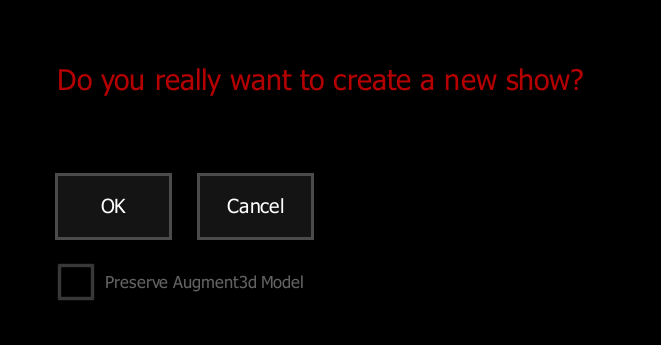
The following options are available:
- {OK} - creates a new show file. Any unsaved show data will be lost.
- {Cancel} - discontinues the operation.
- Preserve Augment3d Model - includes any existing Augment3d model in the new show. Disabled by default.
An additional option is available on Ion Classic (disabled by default) and Element Classic (enabled by default) consoles:
- {Patch 1to1} - creates a new show file with a 1-to-1 patch and 1-to-1 channel to sub assignment.
Template Show Files
A template show file can be assigned in the ECU via Settings > General.
When a show file is assigned as a template, Eos will create a copy of the file in the Templates folder to be used as the default starting point for any new show files. A new option will appear in the CIA under File > New From Template (Template Show File Name) to create a new show file identical to the template. A blank show file can always be created with the File > New option.
Templates can be managed via ECU > Settings > Maintenance > {File Manager...}, and are unaffected by deep clears.
Deleting Show Files
To delete show files, select File > Open, navigate to the desired show file, and press [Delete]. Use [Enter] to confirm the deletion or any other key to cancel.
Use the same syntax to delete show file folders. Folders must be empty before they can be deleted.