Quick Access Pop-Up Tools
Quick Access buttons are available at the top of each display, opening tools that appear in a pop-up window that overlays your current display.

Select an icon to open a tool, and select again to close the pop-up window.
{Popup Magic Sheet}
Allows quick access to a magic sheet (see About Magic Sheets) assigned in Setup > User > Displays > {Popup Nav Lock}. If a magic sheet has not been assigned, you will be able to choose one from a list of available magic sheets when you first select the icon.
In Setup > User > Displays > {Popup Magic Sheet}, you can enable or disable the zoom and scroll navigation for pop-up magic sheets. Enabled by default.
{Popup ML Controls}
Allows quick access to the ML Controls [Tab 5].
{Popup Snapshot Browser}
Allows quick access to your favorite Snapshots. Snapshots can be assigned as favorites when you record them. Select a snapshot to recall it.
Virtual Keyboard [Tab 7]
{Popup Virtual Keyboard} allows quick access to the virtual keyboard available in [Tab] [7]. which mimics the hardkeys found on the physical face panel of Eos Family consoles.
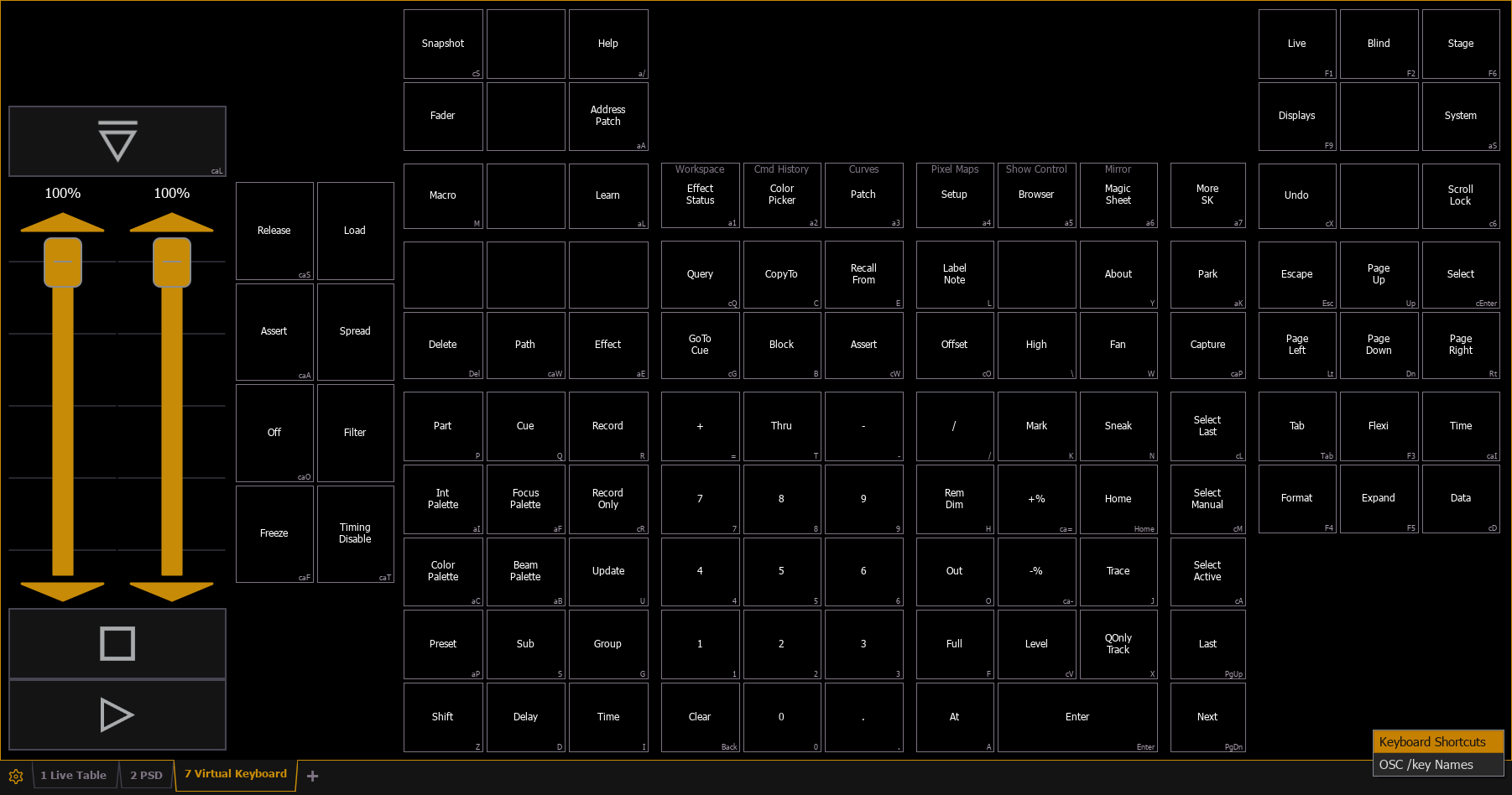
By default, the alphanumeric keyboard shortcut for each hard key displays in the lower right hard corner. You can use the dropdown menu in the bottom right to instead display the key names used in OSC messages. For more information, see Open Sound Control (OSC).
Time
The time the console is using. Defaults to 12 hour format. To use 24 hour format, make sure {24 Hour Clock} is checked.
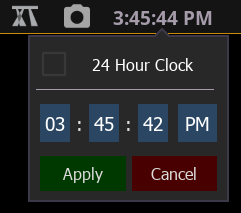
Time can also be changed from the shell via Time Service (SNTP).
ETCnomad time settings are determined by Windows or macOS, and cannot be edited here.