Working with Echo Control Systems
An Echo Expansion Bridge that is configured from within Paradigm LightDesigner Software allows control of connected Echo systems, enabling system monitoring, control of Echo Presets, Echo Zones, Space Combine, and Space Lockout from any Paradigm control, including Timed Events.
Using Echo Controls
Using Echo controls in the Property Editor while in the Program/Simulate view. When simply controlling the connected Echo Expansion Bridge from LightDesigner Software, place your session into Live Control to see the control activity in real time.
Note: When not in Live Control with an online system, simulated preset levels for Echo Presets are always 100%. When in Live Control the actual values will be presented in Program/Simulate view.
- Double-clicking on the Echo Expansion Bridge object in the Plan workspace displays the Echo Spaces and Zones that are configured. Use the Property Editor to change the Echo Bridge properties according to your actual installation. See Configuring the Echo Expansion Bridge.
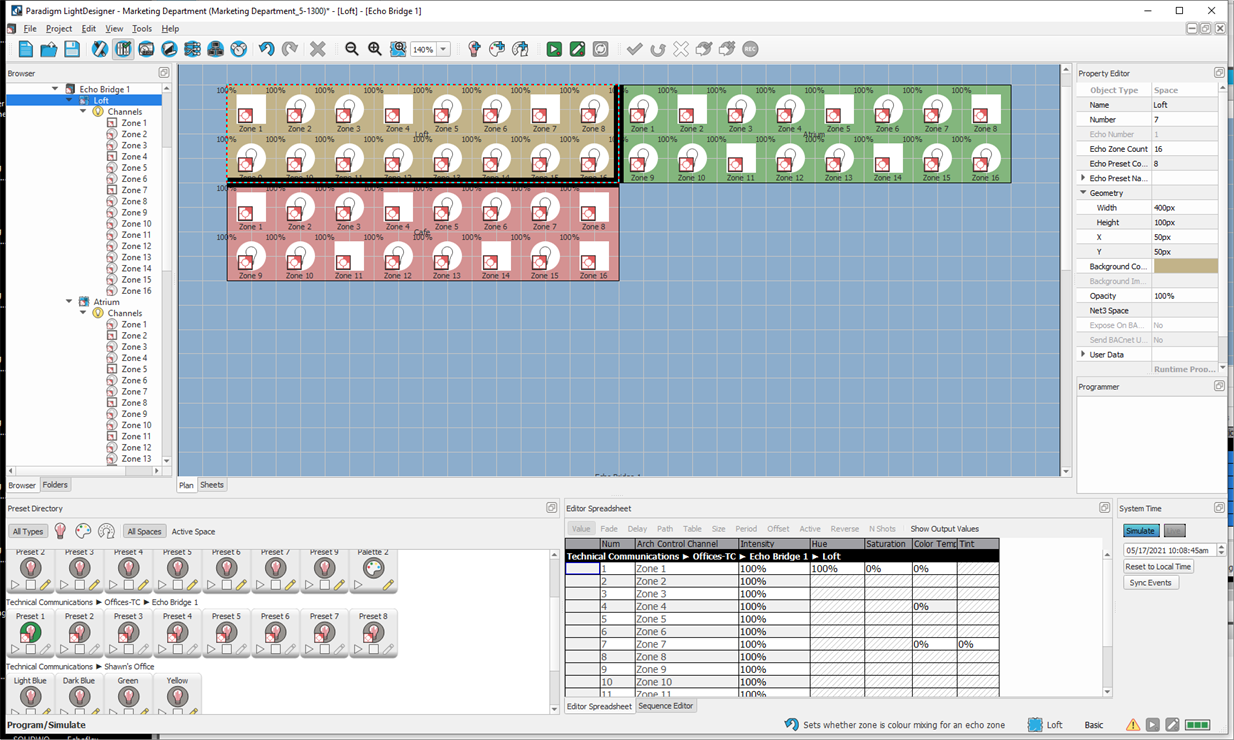
- Selecting an Echo Space from the Browser or Plan workspace highlights the selected space, displays its properties in the Property Editor, and populates the Editor Spreadsheet with the included Echo Zones and their parameters. Use the Property Editor to change the Space properties according to your actual installation. See Configuring Echo.
Echo Zones
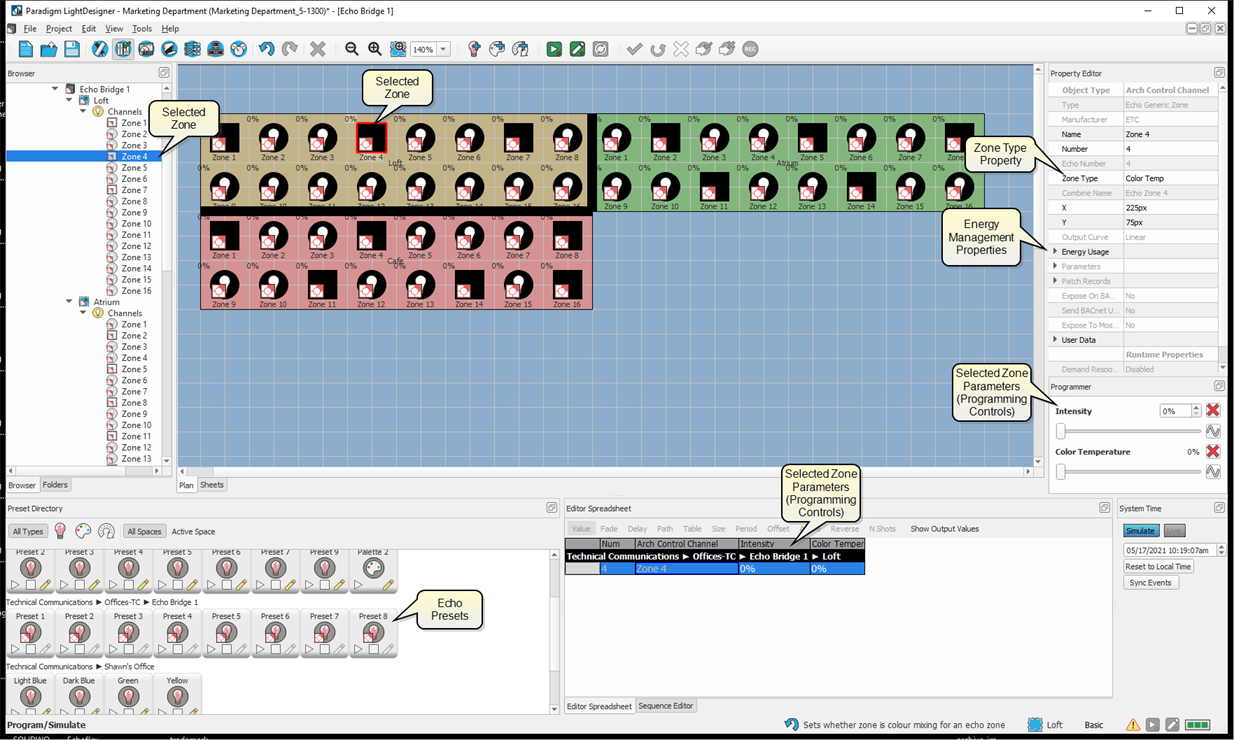
Selecting an Echo Zone from the Browser or Plan workspace outlines the selected zone in red, displays its properties in the Property Editor, and populates the Editor Spreadsheet with the selected Echo Zone parameters.
Energy Usage
Echo Presets
Double-clicking on the Echo Expansion Bridge (EEB) object in the Plan workspace displays it's configured Echo Spaces and Zones in the Plan Workspace. The Preset Directory displays all of the available presets for all spaces in the configuration including the Echo Presets. You can filter the Preset Directory to display only the active space.
Note: Echo controls on the EEB cannot control anything outside of its own connected Echo control system.
Select Included Channels
Right-click on an Echo Preset from the Browser or Preset Directory and select "Select Included Channels" to select all included Echo Zones that are configured for the preset. The included zones display as selected in the Plan workspace (with a red outline and green check mark) and the parameters display in the Editor Spreadsheet. All similar properties for the selected channels are available for group editing in the Property Editor and Programmer while in the Program/Simulate view.
Playing Echo Presets
The following are Echo Preset specific features that are found in the Preset Directory. Most all features in LightDesigner software are achievable through more than one method. This section is specific to how to use Echo Preset features from the Preset Directory.
Activate / Deactivate Echo Presets
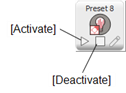
- Click the [Activate] button to activate a preset using Echo preset timing.
- Click the [Deactivate] button to deactivate a preset using Echo preset timing.
- In Live Control, right-click on the Echo Preset icon and select Record from the context menu to record Echo levels in your connected Echo system.
Toggle Preset
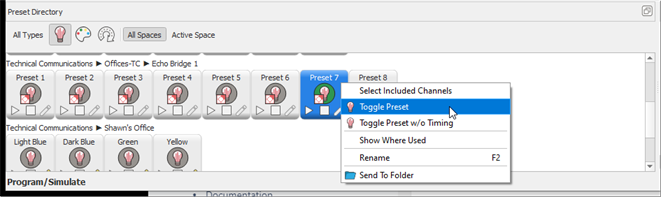
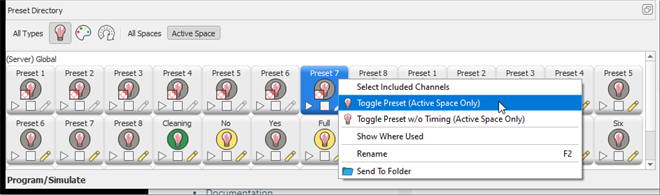
The available options in the context menu will differ according to whether you have filtered the selection to "All Spaces" or the "Active Space". Right-click on an Echo Preset to toggle the preset using the options available in the context menu.
- Toggle Preset - toggles the preset, affecting the configured zones in all spaces using Echo preset timing.
- Toggle Preset w/o Timing - toggles the preset, affecting the zones in all spaces with a 0 second fade time.
- Toggle Preset (Active Space Only) - toggles the preset, affecting the zones in the actively selected space only using Echo preset timing.
- Toggle Preset w/o Timing (Active Space Only) - toggles the preset, affecting the zones in the actively selected space only with a 0 second fade time.
Echo Space Combine
Echo Spaces can be combined by walls in the Design view. Select a wall in the Echo Space and review which spaces are currently combined in the Property Editor.
- To configure space combine for the Echo Spaces, right-click on an Echo Space and select "Combine through" from the context menu. Select an existing wall from the available list or select "New Wall" to create a new wall for the space.
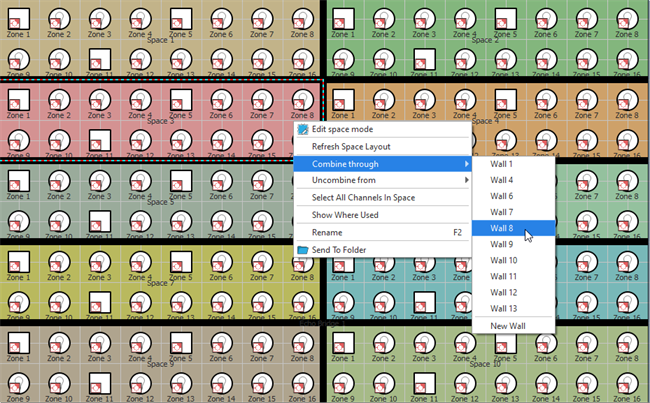
- To separate Echo Spaces that are currently combined, right-click on an Echo Space and select "Uncombine from" from the context menu.
Echo Space Lockout
Lockout Echo Spaces by assigning lockout functionality to Paradigm actions (buttons, timed events, macros). Echo Spaces lockout for lockout group A, with any value above 0. See Station Functions, Timed Events, and the Macro Editor for assignment information.
Controlling Echo from Paradigm Controls
Control Echo presets and zones by assigning Echo control functions to Paradigm button controls. See Station Functions for control function assignment.