Import Load Schedule
In general, a load schedule is an organized spreadsheet that helps to determine how loads are being distributed in the lighting system, as well as provides an idea of how many circuits are being used per application within a project. Where LightDesigner is concerned, a valid load schedule in a spreadsheet form, OpenDocument Spreadsheet (*.ods) format, can be imported into a configuration using the Import Load Schedule feature found in the Project menu.
Alternatively, when creating a new project, you could import the list in the Processor Properties and Data Import section of the New Project Wizard or New Server Project Wizard.
Importing the load schedule into LightDesigner allows you to batch create channels and even the spaces that include them. Imported channel data includes its name, the space where it exists, DMX and sACN patch data, energy management data, Demand Response election per channel, and even User Data information.
Load Schedule Spreadsheet Formatting
The load schedule spreadsheet can have as much data and formatting as you require for your personal use, so long as the columns of the imported data have the required keywords that all begin on the same row. The order and sequence of the columns are insignificant.
Note: Data included in the load schedule spreadsheet formatting that is not needed for the load properties or that falls outside of the required formatting for successful import will be ignored by the import process.
Importing by Number Data versus Channel and Space Data
Channel and Space are the only required columns of data for a successful load schedule import. In the sample load schedule provided below, the Number column is the channel number property.
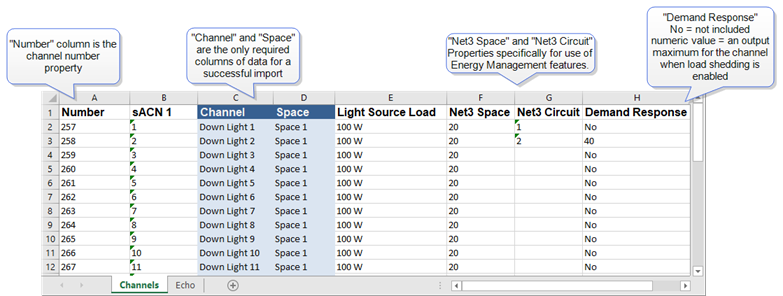
If you choose to include the Number data in an import, a dialog will display for confirmation of whether you prefer to import the load schedule matching the data by the Number or by the Name and Space.
- Selecting to import by Name and Space brings the data into the project and overwrites any conflicting number for the channel with the same name and space.
- Selecting to import by Number does the following:
- Adds any new space names as primary spaces
- Adds any new intensity channels with formerly unused numbers
- Moves channels with matching number to any differing specified space
- Overwrites channel names for any channels with previously used numbers
Note: While importing, a load schedule can create spaces but it cannot define space hierarchy. To define space hierarchy it is best to first either create spaces in LightDesigner, export the load schedule and edit accordingly, or first import an equipment list which can specify space hierarchy.
Tip: When using the OpenOffice freeware application to edit or create your spreadsheet, be aware that editing the "sACN" column name will result in the application automatically changing the name to include a capitol S ("SACN"). This is invalid and will not import into LightDesigner. You must change it back to "sACN" for a successful import process.
User Data
Any extra columns of User Data to be imported should be designated using parenthesis around the column header, for example (My Channel Notes). All provided row data will import with a valid column header. In addition, when imported, the provided header name overwrites the User Data label in the Property Editor.
Echo Expansion Bridge
A second tab in the import load schedule spreadsheet can be included for Echo Expansion Bridge configuration data.
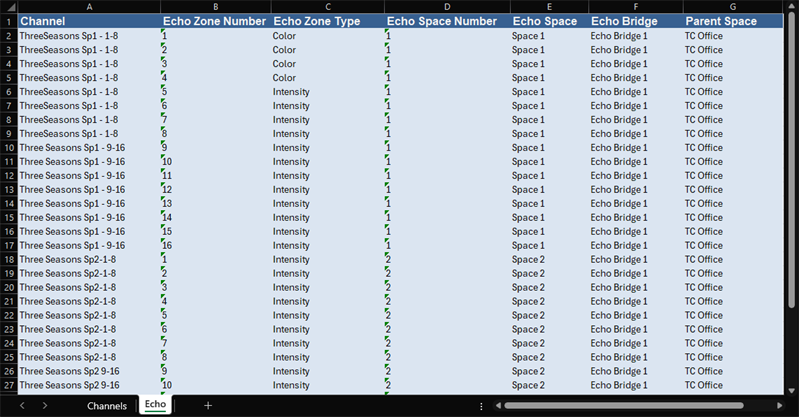
The data columns must include the following headers and supporting data for a successful import:
- Channel - the name of the Echo Zone
- Echo Zone Number - the Echo Zone number
- Echo Zone Type - the type of Echo Zone (Intensity, Color, Color Temp, or Studio)
- Echo Space Number - Echo Space number (1 - 16)
- Echo Space - Echo Space Name (Space 1, Space 2, etc.)
- Echo Bridge - Echo Bridge Name
- Parent Space - Paradigm Space where the Expansion Bridge is scoped
- Light Source Load* - the load in units of watts
- Demand Response* - No = not included, a numeric value = an output maximum for the channel when load shedding is enabled
* Not shown in the example image, nor are these data points required for a successful import.
Importing Conflict Dialog
The import process could result in a conflict with pre-existing configuration data causing a "Import Load Schedule Conflicts" dialog to display for specification of replace, merge, or ignore. There are multiple reasons a conflict can occur, with a main reason being a duplicate object of the same name; importing a file twice will not create the objects in duplicate. Instead you are provided with a conflict dialog for disposition of which version of the same object you would like to maintain.
You can submit an action per conflict or a set an action that will manage all conflicts at once.
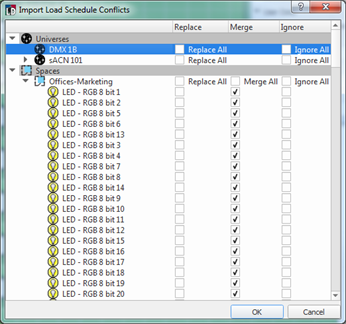
After the import is completed successfully, there may still be errors incurred by the import. Check the Error Browser for a list of any incomplete assignments that may affect the configuration.