Stopping Effects
Note: [Stop Effect] is used below. Consoles without this hardkey use the following key combinations:
- [Shift] & [Effect] - Apex 5 / 10 / 20 / FP
- [Fader Control] {Stop Effect} - Ion Classic
- {Fader Control} {Stop Effect} - Element 2 / Element Classic
StopEffect can also be accessed via a connected keyboard with CONTROL+ALT+E and SHIFT+ALT+E.
Using Stop Effect
Use [Stop Effect] to post StopEffect to the command line. Confirm with [Enter] to stop all running effects.
- [Stop Effect] [#] [Enter] - stops the specified effect. You can also use [Effect] [x] [At] [Enter].
- [#] [Thru] [#] [Effect] [Enter] - stops effects on the channels in the specified range.
- [#] [Thru] [#] [Effect] [At] [Enter] - removes effect instructions on the channels in the specified range. Works from Live or Blind.
Assigning a Stop Effect Command
A [Stop Effect] command can be assigned to a list of channels in a cue to prevent effects from tracking into it. Freeze and Stop Effect on Submasters can be used to affect lists of channels in submasters.
- <Chan> [1] [Stop Effect] [Enter] - creates a stop effect instruction for all selected parameters, if there isn't an effect running on any of the parameters.
- <Chan> [1] [Effect] [Enter] - stops the effect currently running effect.
Stop All
A Stop All command can be used with cues or subs to place stop flags on channels and parameters that are not currently running effects, allowing the cues and subs to stop effects from other sources even if Attributes > {Continuous Run} is enabled.
Use [Stop Effect] [Stop Effect] to post Stop All to the command line.
- <Chan> [1] [Stop Effect] [Stop Effect] [Enter] - stops any effects that might be running when a cue containing channel 1 plays back.
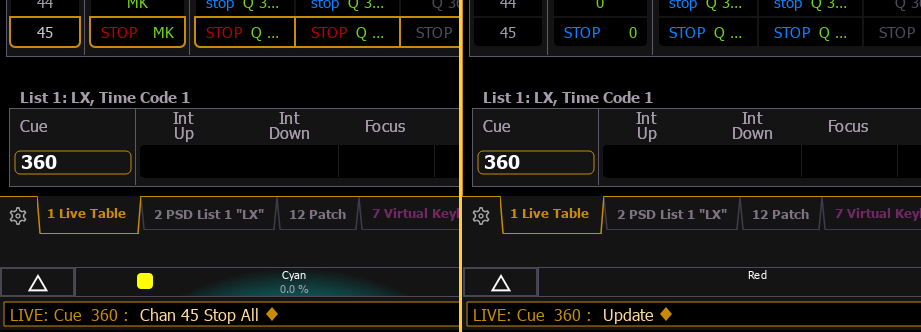
Stop All commands appear in the cue list as STOP.