Effects Editor
When viewing the effect list, the selected effect is displayed in the CIA. The effect properties and attributes are shown in categorized buttons in the CIA. To change a property or attribute, press the corresponding button and enter data as required. Some effect properties, such as rate and size, can only be modified in the Effect Status [Tab 6] and Effect Channels [Tab 8].
The properties display of the effects editor is shown below and definitions of properties follow:
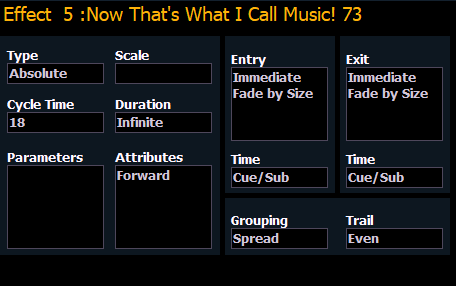
Type
Defines the effect type: step-based, absolute, or relative (linear, focus, or color). To change the type, press {Type} and then press the desired effect type in the buttons to the left.
- <Effect> [1] {Type} {Step based} [Enter]
Scale
Applies only to relative effects. This modifies the amount the pattern is offset from the current parameter values. The scale is expressed as a percentage increase or decrease (25 = 25% of the programmed value).
- {Scale} [3] [0] [Enter] or you may adjust this using the scale encoder, if available.
Cycle Time
Provides a cumulative time to complete one full iteration of an effect. In relative effects, the cycle time determines the length of time required for one channel to complete the cycle.
In absolute and step-based effects, the cycle time determines the time required to complete one full iteration of the effect. In these effect types, modifying the cycle time changes the timing values proportionally within the effect itself.
To change the cycle time, press {Cycle Time} and then enter the desired time (in minutes and seconds) from the keypad, followed by [Enter]. This can also be adjusted from the encoder, if available.
Duration/Cycle
This determines the length of time an effect will run. To specify, press {Duration/Cycle} and then choose the desired method from the buttons that appear to the left. The options are:
- {Infinite} - for step and absolute effects, the effect will run until the channel is provided a new instruction or the effect is stopped,. Relative effects with an infinite duration will run until a stop flag is applied.
- {Duration} - the effect will run for a set amount of time given in minutes and seconds. Enter the time from the keypad.
- {Num cycles} - the effect will run for a set number of iterations. Enter the number using the keypad.
- {Duration/Cycles} {Num Cycles} [1] [0] [Enter]
When an effect with duration is running in a cue, the effect will display in light blue while it is running and dark blue when it has finished. This is only displayed in the Live Summary View.
Parameters
This allows you to select which parameters will be involved in the selected effect, by default. By entering a value here, you do not need to specify the required parameter when placing an effect on a channel group.
To add/ remove parameters to the effect, press {Parameters} and then select the desired parameters from the buttons that appear to the left.
- {Parameters} {Iris} [Enter]
Attributes
These determine the basic behavior of the effect. Attributes include behaviors such as forward, reverse, bounce, positive, negative, and random grouping/ random rate. The attributes are slightly different between step, absolute, and relative effects.
- Bounce - effect will run first in forward, then in reverse. Subsequent passes alternate between forward and reverse.
- Forward - the effect will run in the programmed direction (the arrow on the pattern editor indicates “forward” for pattern effects, and step/ absolute effects will follow numerical order).
- Reverse - effect will run in the opposite direction of forward or reverse numerical direction. Forward and Reverse are mutually exclusive settings.
- Random Group- channel distribution or step order (depending on the type of effect) is applied in a continuously random fashion. Enables Random Modifier.
- Random Rate - This overrides the cycle time of the effect. Random Rate is applied in a range (for example 5 through 150). Enables Random Modifier.
- Continuous Run - the effect will keep running until there is a stop effect command. By default, {Continuous Run} is disabled for all step, absolute, and relative effects. See Stopping Effects.
- Repeat on Go - the effect will not restart unless {Repeat on Go} is used.
- Build - keeps values at their on-state, even when the step is no longer active.
- Positive - effect will run the steps (on state and off state) as programmed. Step effects only.
- Negative - inverts the on state and off state for the effect. Step effects only.
-
- Bounce Channels - runs the effect on the channels first in forward, then in reverse.
Play with these behaviors to see how they alter your effect.
Random Modifier
Random Modifier is an optional parameter that offers additional control over the behavior of effects that have Random Group or Random Rate attributes applied.
- Continuously Random - a "true random" option, which selects a different random modifier value each time the effect plays back.
- 1 - 9999 - each value provides a unique random behavior that is preserved between effects. This value can also be modified in Live to audition different random behaviors.
Entry
Establishes at what time and how channels will enter the effect. To change the entry method press {Entry} and then choose a method from the buttons to the left. Entry modes vary by effect type. The options are:
- {Cascade} - channels enter the effect according to the trail and cycle time values (if applicable).
- {Immediate} - all channels enter the effect instantaneously.
- {Fade by Size} - The effect will achieve its full value as allowed by the pattern or step/absolute values using the In Time.
- {Fade by Rate} - increases the rate of the effect as it enters. If an effect submaster has an entry mode of {Fade by Rate}, the submaster will control the rate between 0 to 100.
- {Fade by Size and Rate} - the effect will achieve its full value as allowed by the pattern or step/absolute values and ramp up to full speed using the In Time.
Exit
Establishes at what time and how channels will exit the effect. To change the exit method press {Exit} and then choose a method from the buttons to the left. Exit modes vary by effect type and how the effect is stopped. The options are:
- {Fade by Size} - when the effect is exited, values will return to their background state while still running using the exit time.
- {Fade by Rate} - decreases the rate of the effect as it exits.
- {Fade by Size and Rate} - when the effected is exited, channels will stop running the effect and return to their background state using the exit time.
- {Stop and Fade} - when the effected is exited, channels will stop running the effect and return to their background state using the exit time.
- {Stop and Hold} - when the effect is exited, channels will halt exactly where the effect left them.
Time (Entry or Exit)
These fields establish the length of time for channels to enter/exit the effect. It can be entered in minutes and seconds from the keypad. These timing values are applied to the entry and exit modes. Cue level timing is the default for these. Press {EnterTime} [Enter] or {Exit Time} [Enter]. To reset to defaults, press [Time] [Enter].
Grouping
Grouping is used only in relative and absolute effects. This determines how channels currently running the effect will be grouped throughout the pattern. To change this press {Grouping} and then enter the number of lights you want grouped together.
Grouping defaults to {Spread}. This means that every light the effect is applied to will act as an individual element, moving through the effect sequentially based on the channel selection order, cycle time, and trail times. You can enter any number from 1 through 2000. A grouping of 2 means that every other light in the selection list when the effect is applied will move together through the effect. Grouping of three means every third light, and so on.
Your options are 1 through 84 or {Spread} which will distribute each channel in the effect evenly and treat it as a separate group.
- {Grouping} [2] - every other channel (in a range of channels) will be grouped when running the effect.
When an effect is applied to a group in live, that group is distributed by order, using this grouping function. If a group list is created and an effect applied, each group is considered an individual element within the effect.
Trail
Trail is applicable to relative and absolute effects. Trail determines how channels are to follow each other through the effect; it is a percentage of the cycle time. Trail can be any value from 0-200%, even, or solo. The default is even. For example:
- {Even} - The groups will be distributed evenly throughout the pattern. This is calculated by dividing the cycle time of the effect by the number of groups of channels.
- {10%}-{200%} - When the first group is 10% through the effect, the second group will start the effect, and so on through the remaining groups. Therefore, the groups will trail n% behind each other, as a percentage of the cycle time.
- {Solo} - The first group will execute the entire pattern. When done, the second group will execute the entire pattern, and so on.