Video Streams
This display allows you to configure video stream sources for use in Eos.
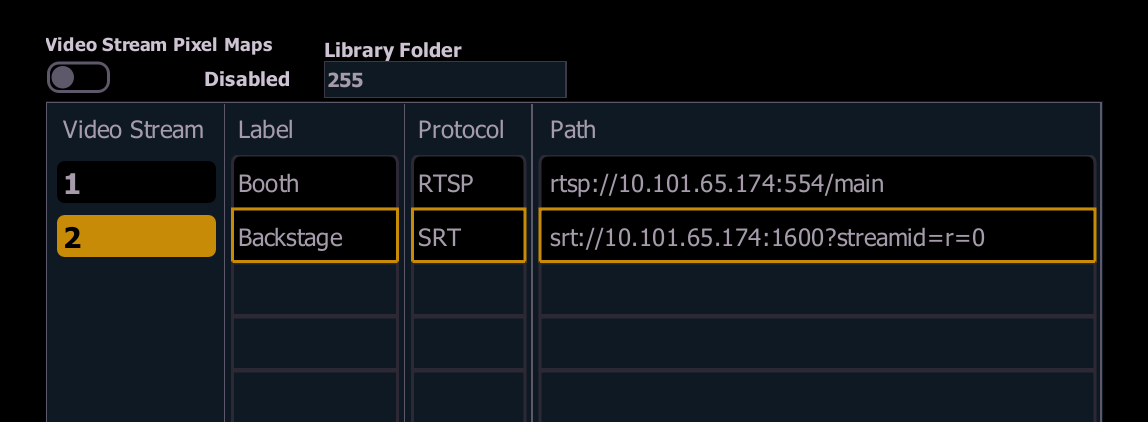
Video Stream List
A list of all streaming video sources in the show file.
Editing Sources
| Action | Syntax | Example | Notes |
|---|---|---|---|
| Add specific sources | [#] [Enter] | [5] [Enter] - creates Video Stream 5. | |
| [#] [+] [#] [Enter] | [7] [+] [10] [Enter] - creates Video Streams 7 and 10. | ||
| Label the currently-selected source. | [Label] [Enter] | ||
| Label specific sources. | [Label] [#] [Enter] | [Label] [5] [Enter] - labels Video Stream 5. | |
| [Label] [#] [+] [#] [Enter] | [Label] [7] [+] [10] [Enter] - gives Video Streams 7 and 10 the same label. | ||
| Label a range of sources. | [Label] [#] [Thru] [#] [Enter] | [Label] [7] [Thru] [10] [Enter] - gives Video Streams 7, 8, 9, and 10 the same label. | |
| Copy the currently-selected source to another source. | [Copy To] [#] [Enter] | [Copy To] [5] [Enter] - copies information from the currently-selected source to Video Stream 5. | Confirmation required. |
| Copy a specific source to another source. | [#] [Copy To] [#] [Enter] | [7] [Copy To] [10] [Enter] - copies Video Stream 7 information to Video Stream 10. | Confirmation required. |
| Delete the currently-selected source. | [Delete] [Enter] | Confirmation required. | |
| Delete specific sources. | [Delete] [#] [Enter] | [Delete] [5] [Enter] - deletes Video Stream 5. | Confirmation required. |
| [Delete] [#] [+] [#] [Enter] | [Delete] [7] [+] [10] [Enter] - deletes Video Streams 7 and 10. | Confirmation required. | |
| Delete a range of sources. | [Delete] [#] [Thru] [#] [Enter] | [Delete] [7] [Thru] [10] [Enter] - deletes Video Streams 7, 8, 9, and 10. | Confirmation required. |
Source Information
The following information is available for each source in the list:
- Video Stream - the stream number.
- Label - the stream [Label].
- Protocol - whether the stream is using the SRT or RTSP protocol. This is a display field determined by the source path, and cannot be used to change protocols.
- {Path} - the network address of the streaming video source. Select anywhere in the field to open the keyboard and enter text.
Stream Address Formats
The {Path} must be formatted specifically based on the source type and protocol, typically containing the following elements:
- Protocol - RTSP addresses start with an rtsp:// prefix. SRT addresses begin with an srt:// prefix.
- IP Address - the Internet Protocol (IP) address of the network camera source.
- Port - the appropriate port for the protocol used. RTSP defaults to port 554. There is no default port for SRT.
- Video Path - this will vary depending on the camera and protocol used.
For example, rtsp://10.101.65.174:554/main or srt://10.101.65.174:1600?streamid=r=0.
Cameras and Other Sources
Consult the documentation of any third-party streaming video sources for detailed specifications on enabling RTSP or SRT output and formatting addresses.
RigPOV Cameras
RigPOV is a streaming video camera that can optionally be attached to ETC High End Systems moving lights.
RigPOV cameras default to port 1600 for SRT. Addresses must follow this format:
- srt://##.###.##.###:###?streamid=r=0
For example, a camera with an IP of 10.101.65.174 would use srt://10.101.65.174:1600?streamid=r=0 as the address.
Set the r value to 1 to receive a lower-bandwidth stream.
{Video Stream Pixel Maps}
Enables Video Stream display access to videos that are already accessible for use as Pixel Map Media. Disabled by default.
Using Streams as Pixel Map Media
Once {Video Stream Pixel Maps} is enabled, you can define a Pixel Map Media Library Folder number in the field to the right, which defaults to 255.
Within the defined folder number, the file numbers correspond to the numbers of your defined video streams.
Via the Virtual Media Layer for a Media Layer Channel, set the Library parameter to the folder defined for video streams, and the File parameter to the video stream number as it appears in the Video Stream List.
For example, imagine a show file with the following video streams and settings:
- {Video Stream Pixel Maps} - enabled.
- Library Folder - 200.
- Video Streams
- Booth
- Backstage
- Stage
- LED Wall Display
Pixel Map 1 is using Media Layer Channel 512. To assign Video Stream 4 as the media for the layer, use the following syntax:
- <Chan> [5] [1] [2] [At] [Full] [Enter] - activates the media layer.
- <Chan> [5] [1] [2] {Library} [2] [0] [0] [Enter] - assigns the media folder defined for video streams.
- <Chan> [5] [1] [2] {File} [4] - assigns Video Stream 4 as the media file.
The {Library} and {File} parameter softkeys can be accessed via ML Controls [Tab 5].
Streaming Video Specifications
Eos can receive and display the following formats of streaming network video:
Sources must use the H.264 codec.
Displaying Streams
Eos can connect to any number of separate video sources.
Total simultaneous video stream input is typically determined the Source Stream Limits of the devices providing network video, and, to a lesser extent, the processing power and bandwidth of your system.
Lowering the quality of video stream displays may help free up system resources and improve speed or responsiveness.
Eos can display video streams in the following ways:
- One or more instances of the Video Stream [Tab 41] display can be opened at once.
- Video Stream objects can be added to Magic Sheets.
- Videos can be used as Augment3d Materials.
- Videos can be overlaid on Augment3d using the Camera Tool.
- Videos can be used as Pixel Map Media.
Video streams must be added and configured via Setup > System Settings > Video Streams before they can be viewed elsewhere in Eos.
Active streams will be indicated in the header at the top of the display.
Source Stream Limits
CAUTION: Streaming video sources are limited in the number of streams they can transmit simultaneously. Exceeding these limits can cause your system to not work as expected or desired. Consult the documentation of any third-party sources to determine the limits for your devices.
The limits of your video sources may impact how streams can be viewed in Eos. For example, a source that only supports a single stream at a time could not be displayed on a Magic Sheet and in Augment3d at the same time.
In Multi-Console Sessions, each device in the session displaying video from a source counts as an individual stream, which can easily exceed the source's stream limit, especially in larger sessions or sessions utilizing pixel mapping.
Some source devices may activate a protection mode if their stream limit is exceeded and stop transmitting entirely.