Virtual Media Layer
A Virtual Media Layer contains a single piece of Pixel Map Media content.
Virtual layers can be used individually, or stacked on top of one another. Up to 12 total virtual layers of either type can be applied to a single pixel map.
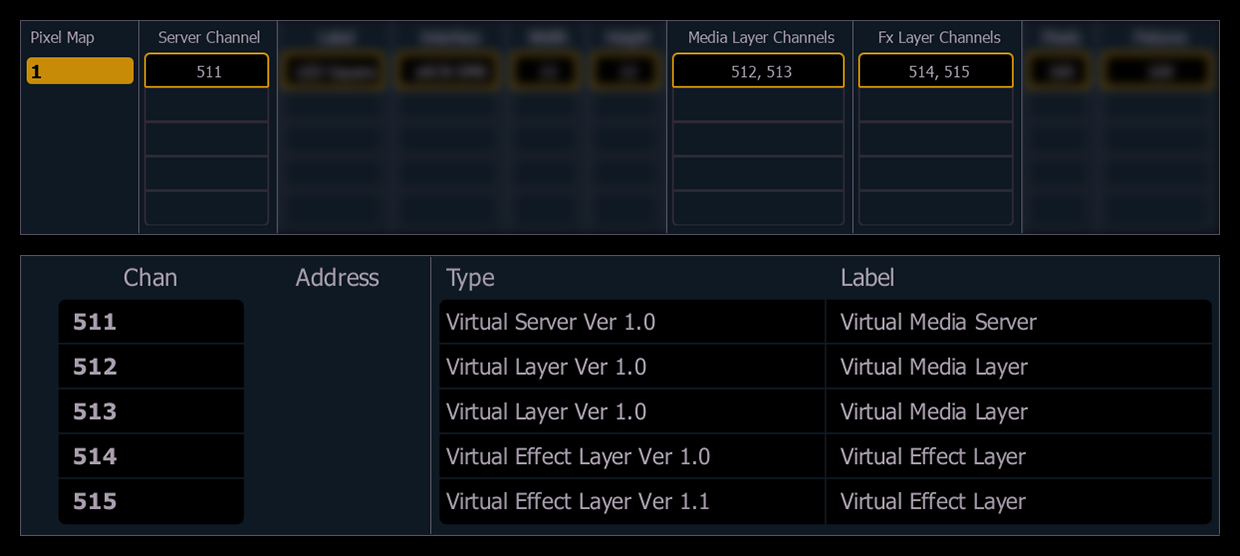
In Patch, the channel types can be found under ETC Fixtures > Virtual. Since the media server is internal to Eos, no addresses need to be assigned to the channels.
The Media Layer Channel must be given an intensity level in order for the media to appear on the pixel map.
All Virtual Media Layers operate in 16-bit color mode.
Media Layer Channel Controls
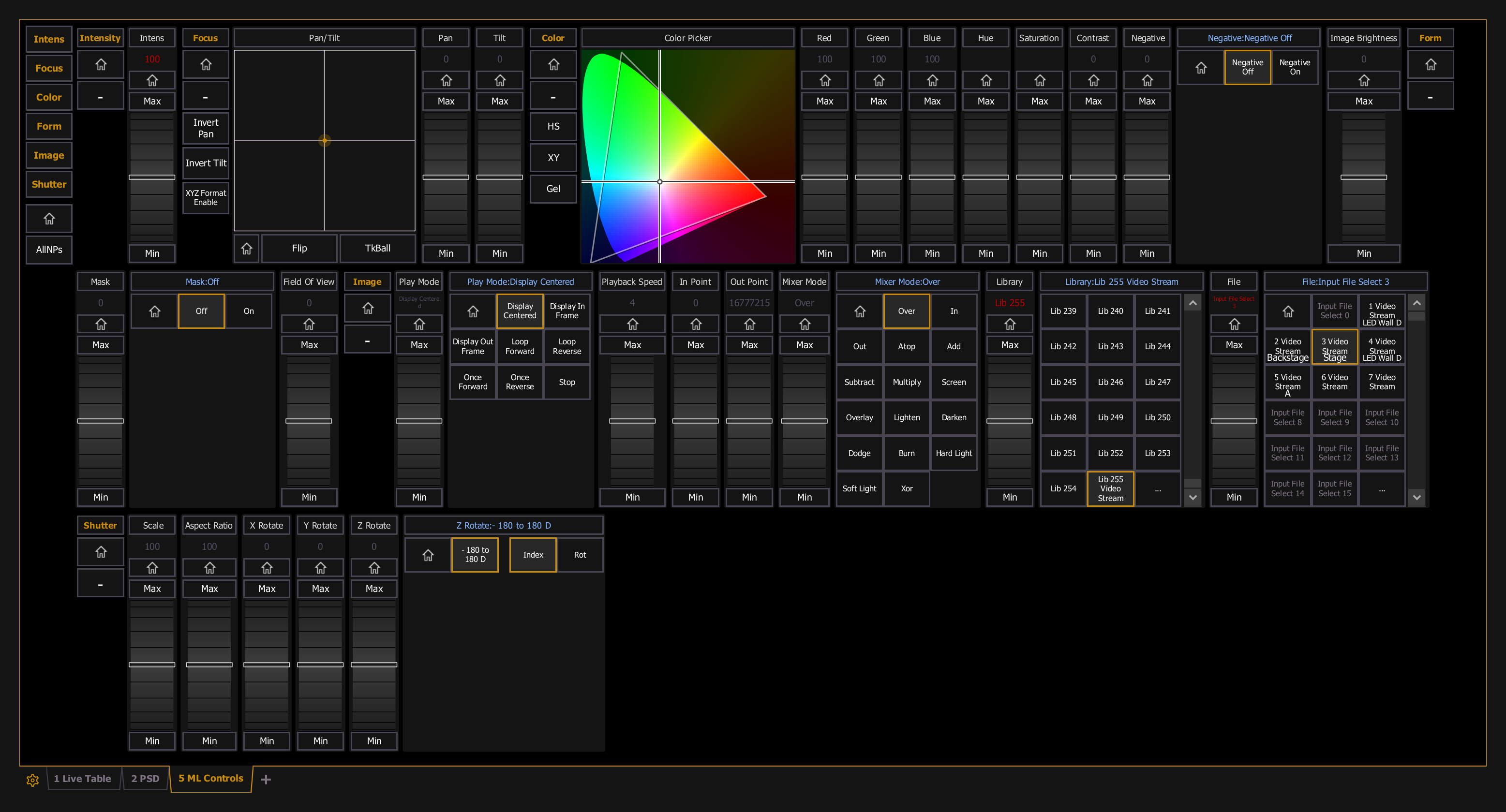
Once a Media Layer Channel is assigned, it can be controlled using the following parameters:
- {Intensity} - sets the visibility level of the virtual layer.
- {Pan} and {Tilt} - adjusts the position of the content within the frame.
- {Color} - filters the color of the content. For example, if all the colors are set to full, the content will play all colors normally. However if blue is at 0, then only the red and green pixels of the content will play. The color and gel pickers can be used to select color filtering quickly.
- {Negative} - with negative on, the output is the negative of the content. With negative off, the content plays back normally.
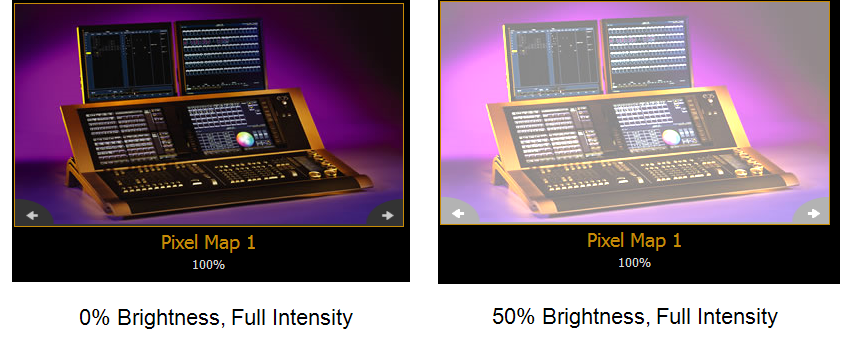
- {Image Brightness} - a brightness level between 0 and 100 makes the content progressively brighter, while a brightness level between 0 and -100 makes the content progressively darker.
- {Mask} - masks takes a lower layer and a higher layer, finds only the non-transparent pixels they have in common, and then displays the common pixels of the higher layer.
- {Field Of View} - field of view, or perspective. This only affects media when {X Rotate} or {Y Rotate} are not set to 0.
- {Play Mode} - determines how the content will play over the pixel map.
- {Display Centered} - centers the content.
- {Display In Frame} - shows the initial frame of the content.
- {Display Out Frame} - shows the last frame of the content.
- {Loop Forward} - plays the content from the in frame to the out frame, then repeats.
- {Loop Reverse} - plays the content from the out frame to the in frame, then repeats.
- {Once Forward} - plays the content once from the in frame to the out frame.
- {Once Reverse} - plays the content once from the out frame to the in frame.
- {Stop} - stops the content at its current frame.
- {Playback Speed} - adjusts the speed at which content will play over the pixel map.
- {In Point} and {Out Point} - determines the frame numbers at which you want the content to enter and exit, respectively.
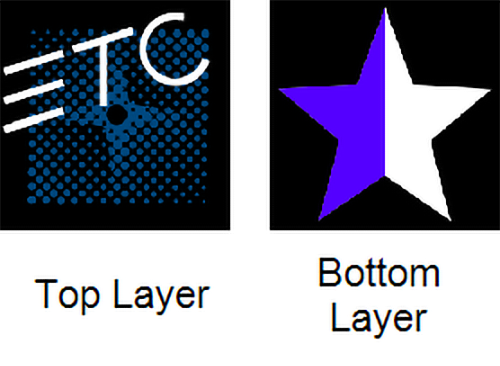
- {Mixer Mode} - sets how the layers will interact. The following table shows the various mixer modes available. To illustrate the modes, the following layers were used:
Mode
Result
Description
{Over} 
Top layer blended with bottom layer. Default. {In} 
Top layer with opacity reduced by opacity of bottom layer. {Out} 
Top layer with opacity reduced by inverse opacity of bottom layer. {Atop} 
Top layer with opacity reduced by opacity of bottom layer and then blended with bottom layer. {Add} 
Top and bottom layers color and opacity added together. {Subtract} 
Top and bottom layers color and opacity subtracted from each other. {Multiply} 
Top and bottom layers color and opacity multiplied together. {Screen} 
Top and bottom layers colors inverted and then multiplied together. {Overlay} 
Does a multiply or screen effect based on the lightness or darkness of the bottom layer. {Lighten} 
Top layer’s color merges with bottom layer’s color, with the lighter color winning. {Darken} 
Top layer’s color merges with the bottom layer’s color, with the darker color winning. {Dodge} 
Bottom layer’s color brightened to reflect top layer’s color.
{Burn} 
Bottom layer’s color darkened to reflect the top layer’s color. {Hard Light} 
Does a multiply or screen effect on the lightness or darkness of the top layer. {Soft Light} 
Darkens or lightens colors depending on the top layer. {Xor} 
Top layer with opacity reduced by inverse opacity of bottom layer, and then blended with the bottom layer with opacity reduced by the inverse opacity of the top layer. - {Library} - selects a media library folder between 0 and 255.
- {File} - selects the media file within the selected library folder between 0 and 255.
- {Scale} - changes the size of the content to be larger or smaller than the standard content playback.
- {Aspect Ratio} - stretches or shrinks the content only along the X axis, making it wide or squished looking. Z Rotate can be used to modify the aspect ratio along the Y axis.
- {XYZ Rotate} - rotation controls for all layers.