Patch > Patch
When Patch [Tab 12] is open, Eos defaults to displaying this section in the CIA. It provides access to data input fields that you may use to define devices in your lighting system. The Art-Net and sACN offset is also displayed here.
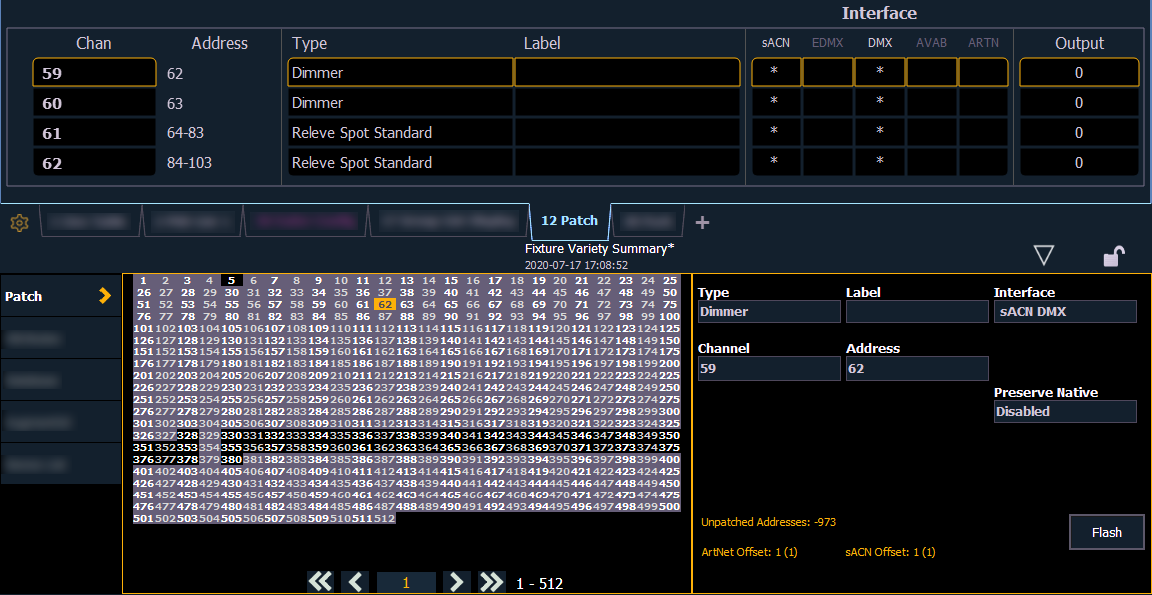
{Type}
The two columns on the left side of the CIA are pageable and show manufacturer names. The four columns to the right of the manufacturer’s list are pageable devices that are available from the selected manufacturer for patching.
Selecting a specific manufacturer repaints the display with all devices that are available from that manufacturer. After you select a device, the fixture/ device type appears in the command line, in the {Type} box in the CIA, and in the “Type” field for that channel in the patch display.
{Channel}
In the patch display, all channels are displayed in numerical order. When multiple devices are patched to the same channel, the channel number is only displayed in the first row, additional devices are indicated with part extensions (example P2) on the next row of the table.
Select the channel number using the control keypad or the direct selects.
{Label}
An optional user-defined label. You can use the [Label] key to display the virtual PC keyboard on the CIA. Pressing {Label} or [Label], after a label has already been assigned, will display the label on the command line for editing purposes. Pressing [Label] [Label] will clear the text.
[1] [At] [5] [Label] <S4 house right> [Enter] - patches channel 1 to output 5 and labels channel 1 as “S4 house right”.
{Address}
{Interface}
An optional field used to specify what protocols and interfaces should be used for the output. When the field is left blank, the default data output is used as selected in Patch > Protocols. If an output option is not enabled, it will appear grayed out in the {Interface} list. If the interface is enabled, an asterisk (*) will appear in the interface column on the Primary and any connected Clients.
If per-address priority is enabled, the Interface column above can be used to enter individual priority levels for separate addresses.
{Preserve Native}
When {Preserve Native On Patch Change} is enabled, patch changes that would alter DMX output will convert any saved user levels so that DMX output remains the same, preserving the appearance of cues, presets, palettes, and subs where possible. Disabled by default.
The levels typically displayed in Eos are user levels, an abstract representation of the actual DMX value that is being output. For example, intensity is typically measured with a user level from 0% to 100%, which corresponds to DMX levels of 0 to 255. When Eos states an output of 30%, the DMX value being sent is 85. DMX values can be viewed in Live and Blind [Tab 1] at any time with the [Data] Key.
Changes made in Patch have the potential to change the DMX value a show file outputs if the user level remains the same. For example, a moving fixture is set with a pan value of 25 degrees, and is then repatched as a profile with a wider pan range. Pan remains at the same 25° user level, but since the fixture can physically pan further, 25° corresponds to different DMX values than it did in the previous profile, changing the position of the fixture. With {Preserve Native On Patch Change} enabled, Eos instead maintains the initial DMX value when the patch is changed, resulting in new user levels.
When enabled, changes to the following Patch settings will prompt a conversion:
- {Type}
- {Channel}
- {Invert Pan}
- {Invert Tilt}
- {Swap Pan/Tilt}
- {Shutter Order}
- {Scrollers}
This setting does not apply to patch changes resulting from direct edits to a fixture profile.
{Flash}
Brings a channel or address to full, and then every other second the level will move to 15%. That will hold for 1 second, and then the level will return to full. The channel or address will keep flashing until either the command line is cleared or {Flash} is selected again.