Scroller and Wheel Picker and Editor
The scroller and wheel picker allows you to choose a specific scroll, color wheel, gobo wheel, or effect wheel from standard manufacturers and associate them with fixtures. You may also create customized scrollers or wheels using the editor to match custom devices installed in your fixture.
Note: Scrollers, color wheels, gobo wheels, and effect wheels can be created without first selecting or patching a fixture.
Using the Picker
Default color and pattern media for the selected fixture, as determined in the fixture library, is displayed in the {Attributes} page. Only the media attributes that are available for the selected fixture will display.
In the image below, the selected channel is a Source Four Revolution® with a color scroller and two gobo wheels. If the selected channel included other wheels, each device would be represented in the display with a button.
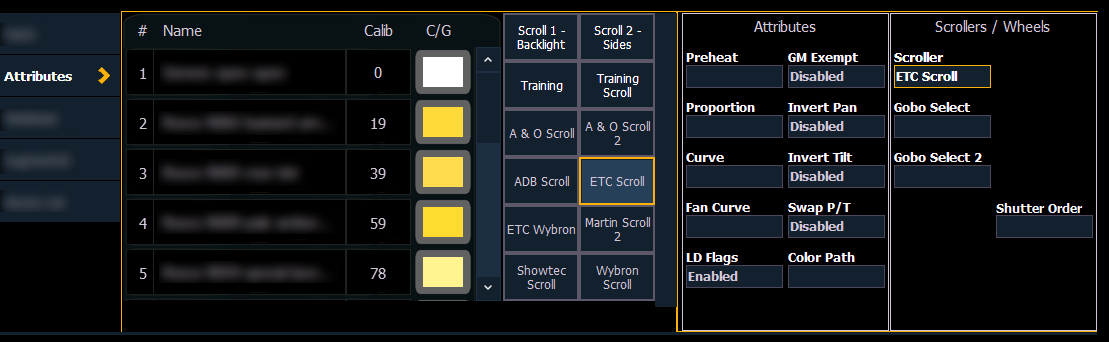
The picker displays on the left half of the CIA when you select the specific attribute ({Scroller}, {Color Wheel}, {Gobo Wheel}, or {Effect Wheels}). The picker displayed is specific to the selected attribute; the scroll picker will display when {Scroller} is pressed, the color wheel picker will display when {Color Wheel} is pressed, and so on.
The picker displays buttons for the standard scroll or wheel type of the selected channel. The default selection is the wheel as shipped from the manufacturer (derived from the fixture library). Displayed to the left of the standard scroll and wheel selection is a list of each color and gobo as they are installed in the selected device (frame by frame). When the color or pattern image is available, it will display next to the frame name.
In the above image, {ETC Scroll} is the default scroll for the selected ETC Source Four Revolution. The list of gel colors as they are installed in the scroll are displayed to the left with a color chip for easy reference. Selecting any other type, such as {Martin Scroll 2}, updates the frame list.
The softkeys displayed beneath the picker are {Clear Calib}, {Copy Scroller}, {Clear}, {New}, {Copy}, {Edit}, and {Delete}.
- {Clear Calib} - clears out the calibration data for the whole scroller wheel and returns to the wheel’s default data.
- {Copy Scroller} - used to copy a scroller wheel and its calibration to another channel. See Scroller Calibration Column.
- {Clear} - clears the selection type from the selected channel in the picker.
- {New} - creates a new scroll or wheel and provides additional softkeys to enable the Editor.
- {Copy} - makes a copy of the currently selected scroll or wheel type, which can then be edited using the editor.
- {Edit} - used to edit an existing scroll or wheel.
- {Delete} - used to remove the selected frame only from a scroll or wheel that you have created.
Using the Editor
The editor is used to create new or edit copied scrolls and wheels. While in the picker display, you can create a new scroll or wheel with the {New} softkey or make a copy of an existing scroll or wheel by selecting the source, then using the {Copy} softkey.
The editor does not limit how many frames you can add to the scroll or wheel for the selected fixtures. Keep in mind that any fixture has its own limitations. For example, if you have created a custom color scroll with 30 frames, your selected fixture type may only provide you access to the first 24 frames that you created. This applies to wheels as well.
Note: If you try to select an existing scroll or wheel, the console will display a warning if it has more frames than are supported by your device.
When using the editor, the following softkeys are available for use:
- {Insert} - inserts a new frame above the selected frame.
- {Delete} - removes the selected frame.
- {Edit} - changes the selected frame.
- {Invert} - reverses the order of the frames.
- {Done} - completes the editing process.