Opening Show Files
To open an existing Eos show file, select File > Open in the browser and choose the Save Location of the show file.
Selecting the show file will open the open the partial show loading screen in the CIA.
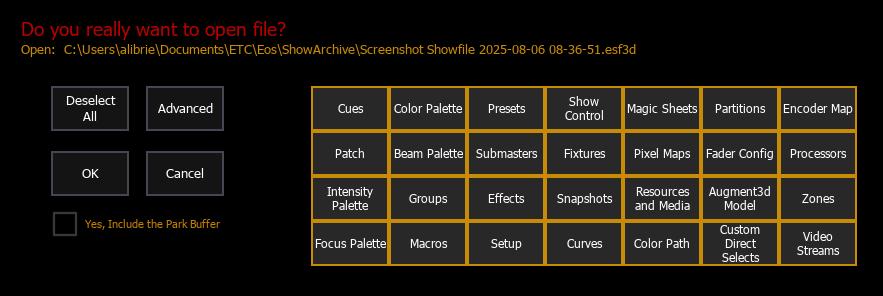
From this screen you can select which components of the show file you wish to load. By default all components are selected (gray) and will be loaded. To withhold any show components from loading, deselect them in the CIA by touching the respective button. To reselect all show components, press the {Reset} button and all buttons will return to gray (selected). Use {Deselect All} to deselect all components at once.
Additional options are available when using {Advanced} for Selective Partial Show Opening.
When you have made your desired selections, use the {OK} button to load the selected show. To exit the show load process, press the {Cancel} button.
Show File Name Conventions
Names of show files may appear in the browser list in normal text or in bold text. Files in normal text indicate that there is only one show file stored by that name.
Bold show names indicate that there are several versions of the show file stored under that name, the bold one being the most recent. To access the most recent show file, simply select the bold name. You may right arrow from the bold name to expand a list of previous versions beneath it in the browser. Select the desired show from the expanded list.
Park Buffer
Any show file elements that have been added to the Park [Tab 20] display are stored in a buffer when the show file is saved, and by default will not open with the show file.
To load a show file with the parked elements from the buffer included, select the box labeled Yes, Include the Park Buffer.
Show File Advisory
If the loaded show file exceeds the console’s output capacity, an advisory will display in the CIA. You will need to dismiss the advisory by pressing {OK} before continuing. To see the capacity of the console, press [About].