Saving Show Files
Save
To save the current show data, select File > Save in the browser.
Quick Save
To quick save without using the browser, hold down [Shift] & [Update].
Quick save always saves to the most-recently-used save location.
Save As
To save a show file to a specific location or with a specific name, navigate to File > Save As and press [Select] to expand the list of available save locations. Navigate to the desired storage location and press [Select] to open the alphanumeric keypad in the CIA.
The current show file name will be used by default. Use [Label], [Delete], or DELETE to clear the entire label, or BACKSPACE to remove a character at a time. Name the show file and press [Enter]. The show file will be saved in the specified location with the name you entered and a timestamp suffix.
Save Location
By default, show files are saved to the Show File Archive, a folder stored locally on your Eos Family device or computer.
On Eos Family devices, this is the only default save location. In Eos on Windows and macOS, the user's Desktop, Documents, and Downloads folders are also displayed by default. Connected USB and network drives will also appear as save locations.
Configure Archives
Note: This option is only available on ETCnomad.
Select File > Configure Archives to make changes to your save locations.
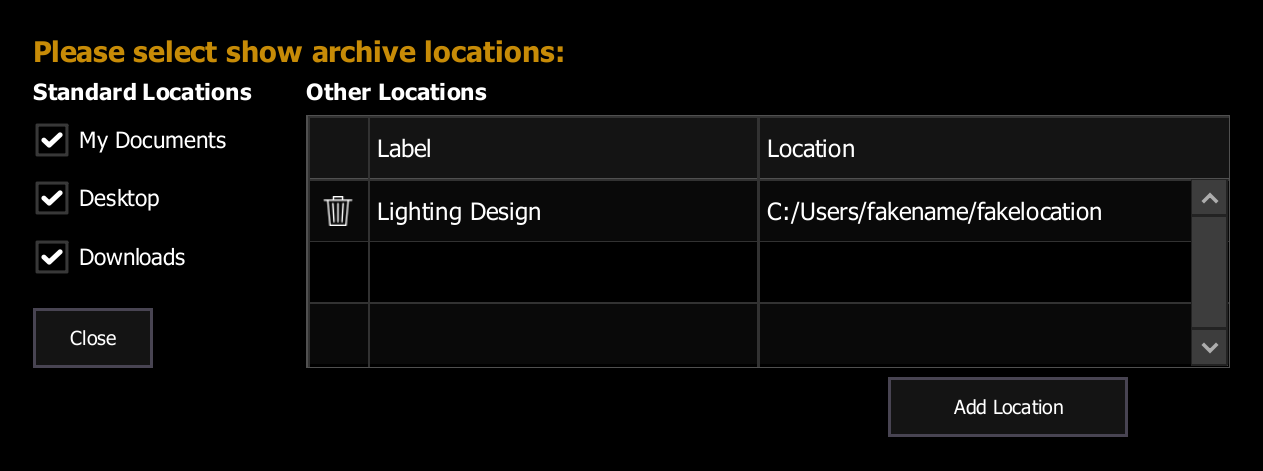
The following options are available:
- Standard Locations - when deselected, these locations will not appear in the File menu as available save locations. Selected by default.
- Other Locations - a list of the computer's custom save locations. Custom locations are stored locally and do not travel with show files.
To add a custom save location, use {Add Location} to navigate to the appropriate folder. Use {OK} to confirm the folder selection or {Cancel} to discontinue the operation.
The folder will be added as a custom location with a default label. The label and path can be edited by selecting in either field. Delete locations with the icon to the left.
Show File Formats
The Save As confirmation includes options for choosing your show file format. This confirmation also appears when a show file is saved for the first time.
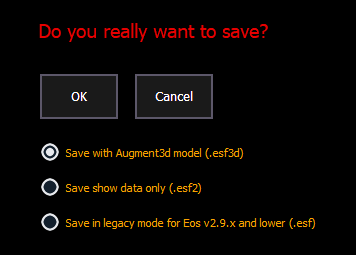
The following options are available:
- ESF3D - includes both show data and the Augment3d model. Only compatible with Eos v3.0.0 and later.
- ESF2 - includes show data and excludes the Augment3d model. Only compatible with Eos v2.9.0 and later.
- ESF - a legacy format for compatibility with Eos v2.9.0 and earlier.
Unsaved Data
Show File Indicator
An asterisk (*) will display beside the show file name to indicate when a show file has been modified but not saved.
An asterisk beside the indicator (Augment3d) indicates there are unsaved changes in the Augment3d model.
Saving to a New Location
If a show file is saved to a new location, the open show file will still display an asterisk, as it remains unsaved in the original location.
Save Show File Warning
If there is unsaved data in the current show file, a save warning will display when you attempt to open a new or existing show file.
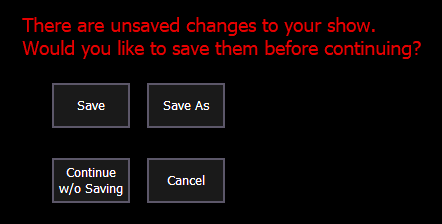
The following options will be available:
- Save - saves the current show file, and opens a new or existing show file.
- Save As - saves the current show file to a different location or with a different name, and opens a new or existing show file.
- Continue w/o Saving - opens the new or existing show file without saving any changes to the current show file. Changes will be lost.
- Cancel - returns to the current show file without saving changes or opening a different file.