
Mask Element
Many skins have a Mask element which sets a boundary for a skin. Masks are typically drawn the same size as the entire skin (i.e. a button).
When rendering a skin, the mask is drawn first, below all other elements. The mask is rendered in the color defined by the ControlDesigner state using the alpha channel of the image resource that is assigned to it.
A mask is useful when used with a skin that is semi-transparent. That skin can be made to look different for every state of its control, purely by setting the color of the mask.
-
If the mask defines a pixel as 100% transparent, that pixel will not have the background color rendered onto it at all.
-
If the mask defines a pixel as 0% transparent (or 100% opaque), the background color will render as a solid onto that pixel.
-
If the mask defines a pixel as 50% transparent, the background color will render as 50% transparent.
This method of applying a mask means the designer of a theme doesn't need to provide a red skin, a blue skin, a green skin, etc, but only define a transparent skin and a suitable mask area.
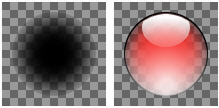
Tip: Since the mask's alpha channel (or level of transparency) is used to mask the color it is rendered in, rather than a solid fill of color, the mask can be a gradient, a pattern, text, or anything that suits your fancy.
Note: If the skin images resources are completely opaque and rendered to the extents of the widget area, the mask will never be seen.
State Colors with a Mask
If a skin doesn't specify a mask element, the entire background is filled with the specified state background color. However, if a suitable image resource is used for the mask element, the state color only fills the area of the skin where the alpha channel of the resource exists.
| Example of a Control with a Mask | |
|---|---|
|
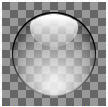
This graphic illustrates a transparent skin with NO state background color. |
|
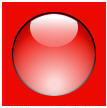
This graphic illustrates a transparent skin with a red state background color and NO mask. |
|
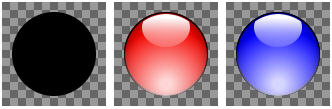
This graphic illustrates a black circle as the mask element, and the transparent control is rendered with each a red and blue state background color. |
Advanced Applications of a Mask
Effects can be incorporated into the mask wherever the alpha channel is greater than zero. The full alpha channel can be used to create different looks when used with a semi-transparent skin.
Example 1:
A 33% opaque mask creates a look similar to the image below:
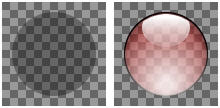
Example 2:
A mask that uses the full alpha channel as a gradient creates a look similar to the image below:
Tip: Animated resources may also be used for the mask element.