
Animation
Image resources can contain multiple images that make up frames of an animation. Animated resources can be created by adding animated .gif or .png files. Preferred formats are GIF89a, and filmstrip style PNG animations (APNGs and MNGs are not supported).

The above image is an example of an animated .png image that includes 2 different images stacked into one composite image. If such a composite image is imported into the "Resource Library", setting the "Frame Count" property of the image resource in the "Resource Editor" to "2" will separate the image into two individual frames.
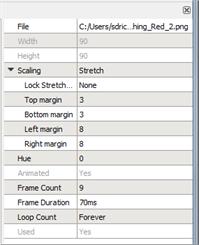
- Verify the "Frame Count" property is accurate according to the imported image. If the number of frames could not be determined from the resource file itself, enter the number of image frames into he provided Frame Count property.
Note: For "filmstrip" *.png based animated files, you will have to specify a number of frames greater than 1 in order for the resource to be marked as an animated resource (animated property changes to "yes"). However, *.gif based animated files do not allow edit of the Frame Count property.
- Set the "Frame Duration", in milliseconds that each frame will display.
- Set the "Loop Count" to determine how many times the loop runs. Setting the Loop count to Forever (default) will cause the frames to cycle thru indefinitely.
Image resources that contain multiple frames will display with an animation (filmstrip) icon on the image thumbnail in the image library.

In addition, the first frame of the animation is the represented image thumbnail in the image library.