
Change the Controls Stack Order
Controls can overlap one another on a page by setting the stacking order for each control. The stack order dictates which control is above or below another in the stack when viewed and during operation. A control with a lower value will overlap a control with a higher value. Another commonly used name for stack order is "Z-order".
Selecting a control and hovering your mouse over the stack tools  in the configuration toolbar will display the stack order for each control on the Page workspace.
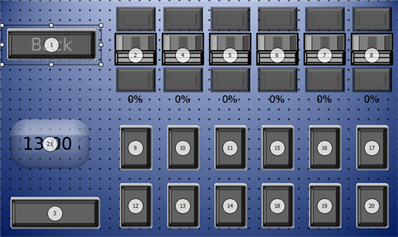
A lower number indicates the object is closer to the foreground and a higher number indicates a controls that is closer to the background.
- To change the stack order of controls, select the object you would like to move into the foreground or background.
- Click to select a stacking order tool from the toolbar ([Top], [Raise], [Lower] or [Bottom]) button or use keyboard shortcuts to move the selected control to the desired location in the stacking order.
- keyboard shortcut (Ctrl) + (Page Up), moves the selected control to the top of the stacking order (making the control number 1).
- keyboard shortcut (Page Up) moves the selected control one unit towards the front of the stack order.
- keyboard shortcut (Page Down) moves the selected control one unit towards the back of the stack order
- keyboard shortcut (Ctrl) + (Page Down) moves the selected control to the back of the stack order, the last control in the current stack.