Open topic with navigation
Station Power Supply Properties
Selecting a created station power supply node from the Browser displays its properties in the Property Editor.
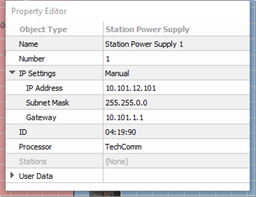
- Object Type - the type / style of object you have selected. This property is not selectable or editable.
- Name - the name of the station power supply. By default this is identified with a number after it's name, for example Station Power Supply 1, Station Power Supply 2, etc. You can rename the power supply.
- Number - the order in which the station was created and appears in the Browser unless a custom "User Sort" has been specified. This "Number" property can be edited, although you will be notified immediately by dialog if a number conflict occurs.
- IP Settings - the IP Address, Subnet Mask, and Gateway for the Network Station Power Supply (P‑NSPS‑D). You can change the properties between "Automatic" and "Manual" configuration and specify the IP Address, Subnet Mask and Gateway.
- The default IP address for the first NSPS added to a configuration is 10.101.12.101. Any additional Station Power Supplies added into the configuration will follow suit of the first one that was configured.
- For example, if the IP Setting for the first NSPS was changed to Automatic IP, the additional supplies will also use Automatic as the IP Setting.
- Additional supplies added to the configuration will use the next lowest available (not used in the currently loaded *.spcf or *.pcf) IP in the range 10.101.12.101 through 10.101.12.254.
- ID - the last three octets of the physical device's MAC address as labeled on the product or shown in the NSPS About>NSPS Hardware menu. This field will automatically populate in the binding process.
- Processor - the Paradigm Processor that the NSPS will connect (bind). This field is a drop down list of all available processors.
- Stations - read only list of stations that are connected or expected to be connected through the station's Interface property.
- User Data - each object is provided with up to eight User Data Tags that can be used in object identification, such as Folders and Smart Folders filtering and spreadsheet sorts. These are labeled User Data 1, User Data 2, etc. by default, but the tags can be customized in the User Data Tags option under the Project menu.