Open topic with navigation
Assign Color Button
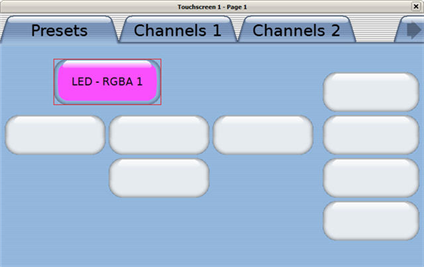
A color button can be used to provide a simpler method to change color on a multi-parameter fixture from a single button on the Paradigm Touchscreen. The "Color Button" offers both a HSB color wheel and RGB faders for color selection.
- Create a Touchscreen configuration in ControlDesigner that includes a "Color Button" control.
- In LightDesigner, double-click on the LCD icon in the Program/Simulate view to display the LCD in simulation.
- Right-click on the "Color Picker" button and select "Set Control Function" from the context menu. The Set Control Function dialog displays.
- The available "Control Function" defaults to <Color Picker> and the "Object type" defaults to <All> as these are the only options for a Color Button. Select the "Space" and the "Fixture to be controlled by the color" button from the dialog.
- Click [OK] to accept the selection.
Color Picker Functionality
In LightDesigner, while viewing the LCD in simulation, clicking on the "Color Button" displays the color picker on additional tabs (popup style).
The color picker displays both HSB and RGB tabs for selection. RGB faders are available on the RGB tab.
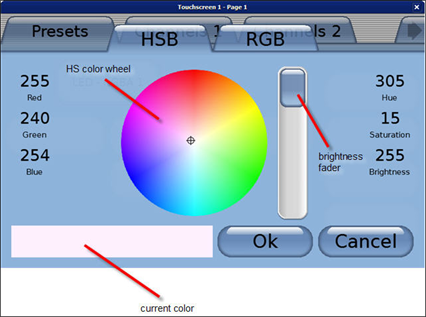
The color picker displays the full range of colors even if the controlled fixture does not support them.
Changing a color from the current selection also changes the color that is displayed on the "Color Button" in simulation. As a reminder, simulation is representative of what will display on the Paradigm Touchscreen in normal operation.