Getting Started with Cobalt
With a Cobalt system, connect the ETCnomad dongle to a USB port on your computer.
- The dongle must be connected to and recognized by the computer before you launch the Cobalt application.
- For Cobalt Offline Editor systems, there is no dongle required and you can start the Cobalt application as normal.
The ETCnomad kit requires software drivers. Make sure that you have installed these drivers prior to connecting the dongle. The drivers should be installed automatically when installing Cobalt software.
When you first launch the Cobalt application, a welcome screen appears with a number of options, depending on the following:
- whether you have the Cobalt ETCnomad dongle connected to the computer and
- whether you have other Cobalt family devices on the same network.
Tip: The full Cobalt User Manual can be found online at etcconnect.com/Products/Consoles/Cobalt-Family/. More conveniently, while running Cobalt ETCnomad, press F1 to display the help system.
Hotkeys are available for use with your PC. It is recommended that you use a keyboard with a numeric keypad in addition to the alphanumeric section to simplify the entry of numbers. In addition, an X-Keys panel may be used to simplify data entry in Cobalt ETCnomad. The X-Keys XK-60 panel is recommended and a pre-made macro file is available for download from the ETC website.
The Console Mimic area is an on-screen emulation of the Cobalt console facepanel. It can be opened as a pop-up on any screen, or as a tab. It contains most keys found on a Cobalt console and can be used to interact with the Cobalt ETCnomad. Cobalt uses a lot of two-key shortcuts for programming and you can use these by using CTRL-click to hold down a key in the console mimic. For example, CTRL-click RECORD and then click GROUP to record a new group.
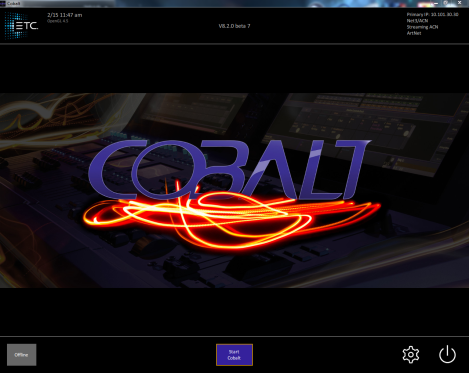
Cobalt Startup Screen
The Cobalt startup screen has a number of options:
- Power button: Exits the Cobalt ETCnomad application.
- Gear button: Opens the system settings dialog where you can configure the network settings and behaviors of Cobalt ETCnomad software.
- Offline: Offline is the only startup mode available when the Cobalt software is started without an ETCnomad dongle attached. Offline mode operates stand-alone and may or may not send reduced-speed output for a visualizer, depending on the system settings.
Note: Offline output is provided with a reduced refresh rate and will appear steppy in fades and moves.
- Start Cobalt: Starts a new Cobalt session in the Server role.
- Join xyz: Joins another Cobalt session on the network using the listed showfile. There may be more than one of these buttons available, depending on how the system is being used at the moment.
- Join xyz button in red: The ETCnomad system and the other Cobalt server are not running the same software version. Both systems must use the same version in order to join together in a session.