Application Settings
Application settings, such as language and the window pane layout, size, and maximize settings are stored local to LightDesigner and are independent of the system configuration. When the LightDesigner application is closed and reopened, the user specified language and window pane layout persists.
Application Window Panes
LightDesigner allows users to tear off window panes for display independently, relocated elsewhere within the LightDesigner display or on a secondary monitor.
Tear Off
To tear off a window pane from the default display, simply click the tear off button  on the top right hand corner of the pane. The pane will immediately detach from its current position and float on top of the application view.
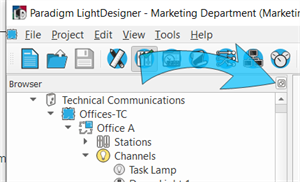
Once the window pane is floating, you may:
- leave the pane free standing
- reposition it to any other position with the display by dragging and dropping it into place
- click in the title bar of the pane and drag it directly to your desired location
- double-click on the title bar of the pane to restore it to its previously docked location
Reset Window Pane to Default Location
To reset window panes to the default application settings, select "Reset Views" from the View menu. To return a pane to the previously docked location, double-click on the title bar of the pane.