Working with Fixtures in Augment3d
Once fixtures are added to your model, you can begin using Augment3d to focus and control them. There are a variety of tools available to help with this.
Fixture Selection & Focus
Selecting Fixtures
To select fixtures in Augment3d, either select them via the Eos command line or use a mouse. Click on a fixture to select it. You can also drag, or hold shift to select multiple fixtures.
There are three colors used for selection:
- Gold - fixtures selected in Eos.
- Blue - fixtures selected in Augment3d Edit Mode.
- Pink - fixtures selected in both Eos and Augment3d.
Focusing with Click-To-Focus
Selecting and holding on an object or plane in your Augment3d model will focus the selected fixture on that spot. Pressing SHIFT + LEFT MOUSE will also activate Click-To-Focus. You can also drag around the model to move the fixtures. Fixtures without pan / tilt parameters must be selected while in Patch for Click-to-Focus to work.
Other Useful Tools
Labels Tool
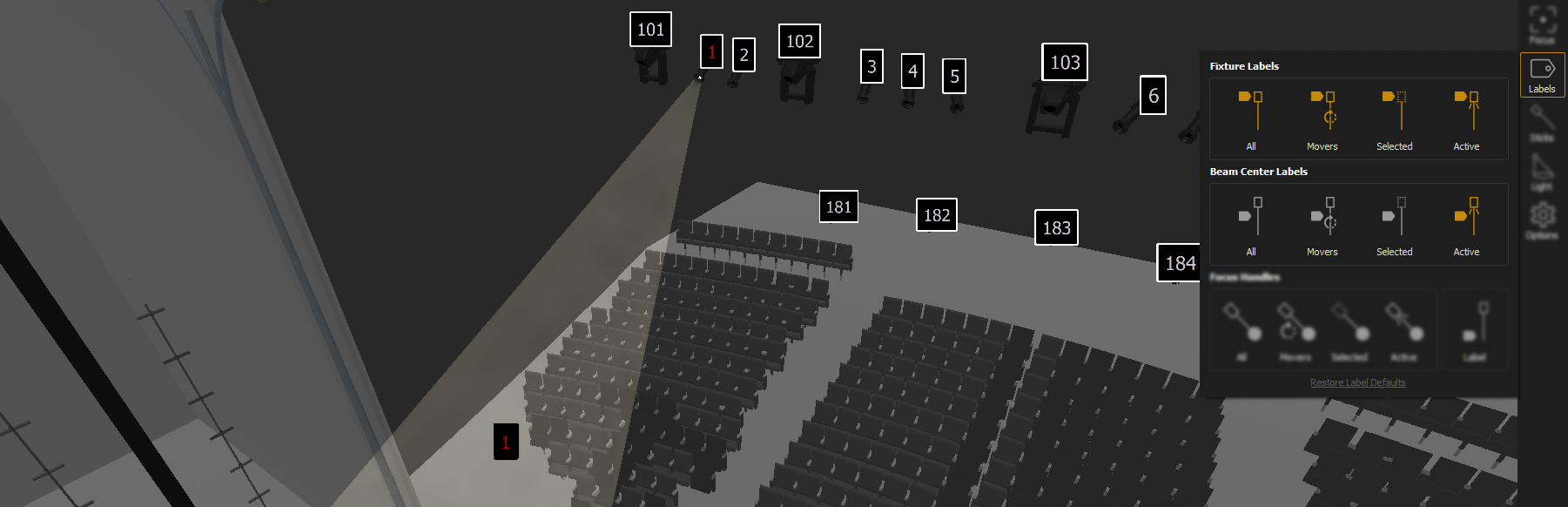
Fixture Labels display the channel number of the fixture. This can be useful in identifying which fixture is creating a particular beam of light.
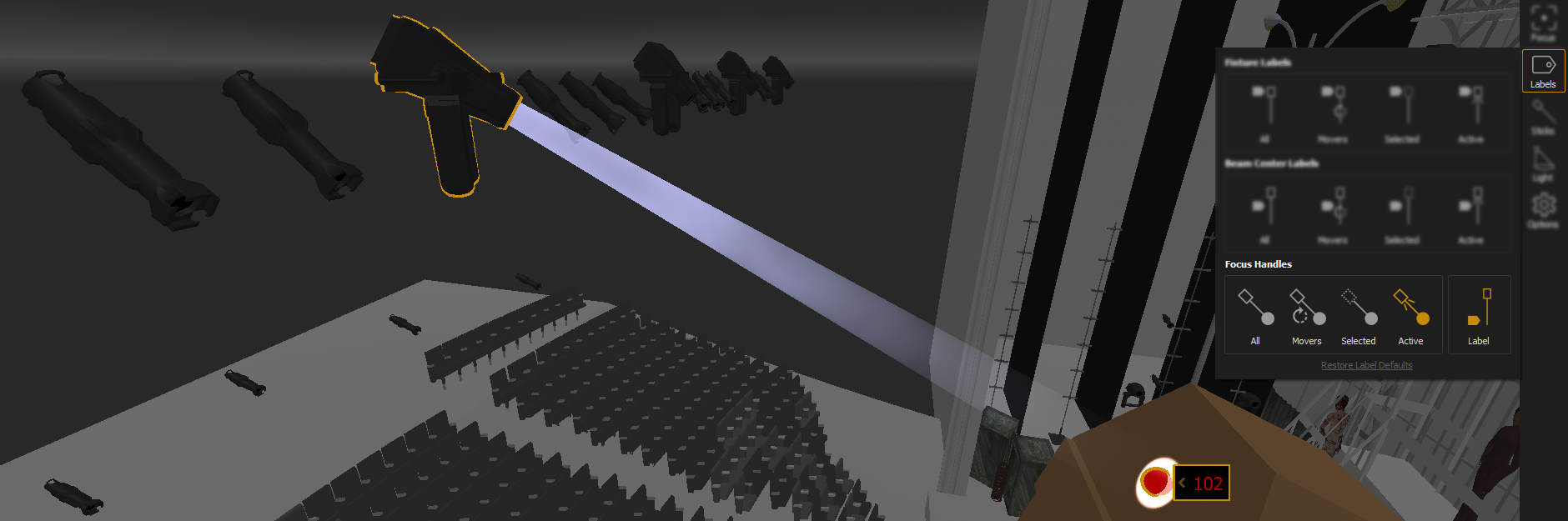
Focus Handles create a controllable point at the end of the beam of an automated fixture, which can be dragged to focus a single fixture, or multiple fixtures together while maintaining their spatial relationships.
Sticks Tool
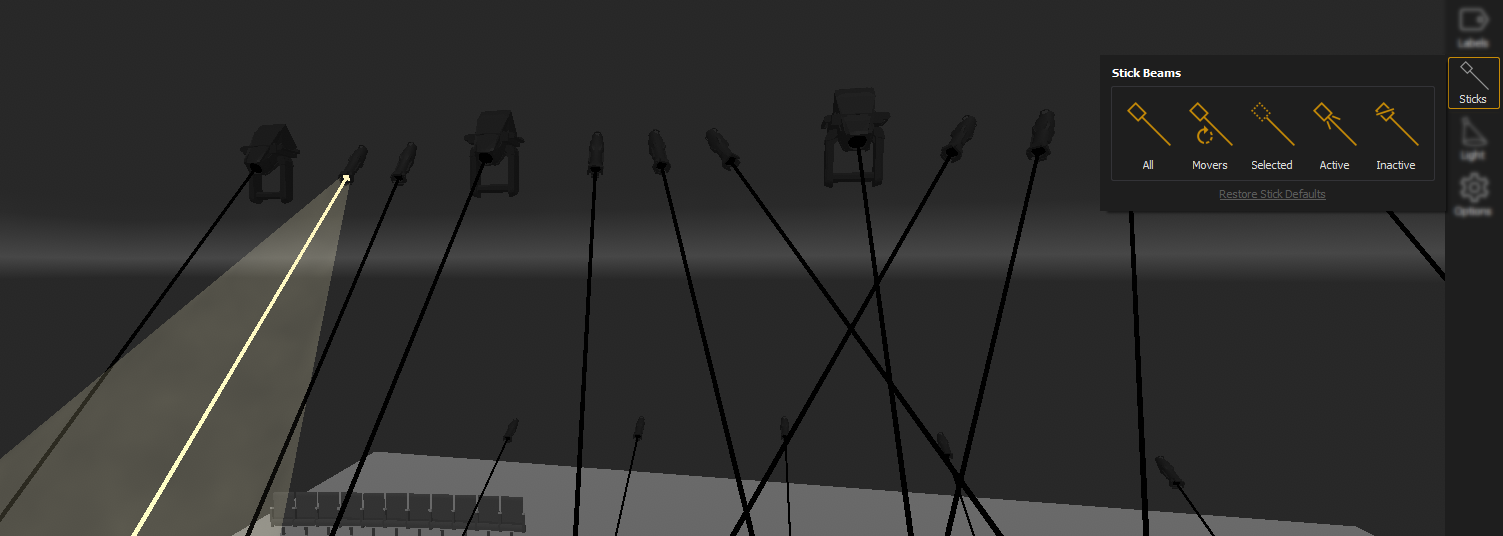
Stick Beams draws a line from the fixture to wherever the beam lands. Stick Beams do not require intensity and can be used to focus a fixture that is not currently outputting.
Focus Tool
Use the Focus Height feature to set a vertical offset from the location that is being focused on, in order to adjust focus to an actor's chest or face, instead of on the floor where they are standing.