Park Values from the Park Display
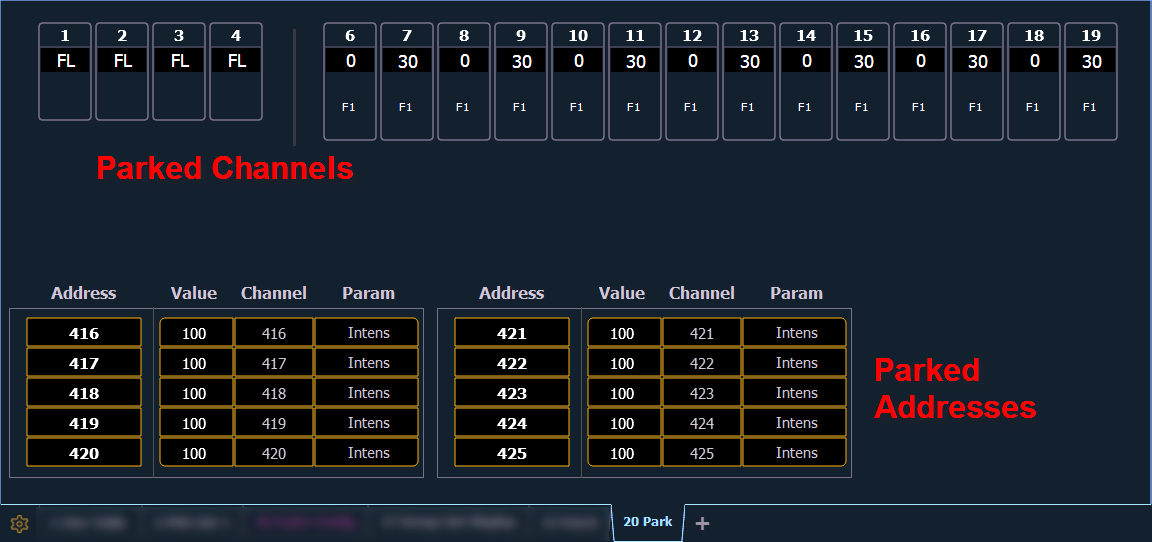
You can park and unpark channel parameters or addresses from the park display. Open the display by pressing [Park] [Park] or [Tab] [2] [0]. While in this display, it is assumed that you want to park channels or parameters, therefore the use of the [Park] key is not necessary when parking, but is used for unparking. You can also use [At] [Enter] to unpark.
Note: [Color Palette] is used in the examples below. Element Classic users will need to use {Color Palette}.
Following are examples for parking channel parameters from the park display:
- [3] [At] [4] [5] [Enter] - parks channel 3 at 45%.
- [3] [Color Palette] [4] [Enter] - parks color for channel 3 at color palette 4.
You can use the {Offset} softkey to aid in channel selection. For a list of the {Offset} options, see Offset.
Following are examples for clearing parked values while in the park display:
- [Select Active] [Park] [Enter] - clears all parked channel parameter values.
- [channel list] [Park] [Enter] - unparks channels in the list.
- [channel list] [At] [Enter] - unparks channels in the list.
Below are examples for parking addresses in the park display:
- [Address/Patch] [5] [At] [5] [0] [Enter] - parks address 5 at 50% intensity.
- [Address/Patch] [5] [At] [Enter] - unparks address 5.
Note: When parking a range of addresses in Park, using [Thru] will only park the intensities. If you want to park all of the addresses and parameters within the selected range, you will need to use [Thru] [Thru].