Subgroups
You can create subsets of channels within a group by using [Shift] & [/] to create parentheses. The subgroups will display within those parentheses.
These subsets of channels or subgroups are treated as a single channel in the following ways:
- When applying absolute or relative effects from live, the subgroups are treated as a single channel by the effect.
- When setting a range of step's channels on a step based effect, the subgroup will not be spread out amongst multiple steps.
- When the group is selected and next/last is pressed, each subgroup is traversed.
- When a group has subgroups, {Reverse}, {Reorder}, and {Random} in the group editor will affect the subgroups instead of the channels in each subgroup. {Reorder} will order the groups based on the first channel in each subgroup.
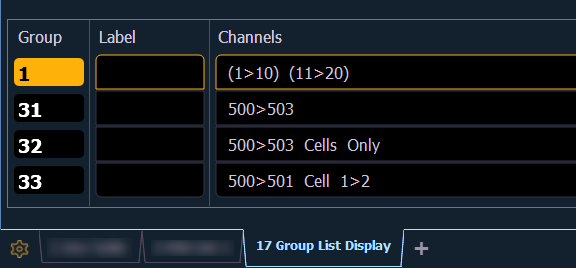
Subgroups can be created either in Live or in the group list.
- [Shift] & [/] [1] [Thru] [4] [Shift] & [/] [Record] [Group] [2] [Enter] - creates a subgroup in Live.
- [Group] [2] [Enter] [Shift] & [/] [1] [Thru] [4] [Shift] & [/] [Enter] - creates a subgroup in the group list index.