Color Configuration
Color configuration information is stored within fixture profiles in your show file. Fixtures with additive color properties will display a color configuration button in the fixture editor, which will open the color configuration editor window.
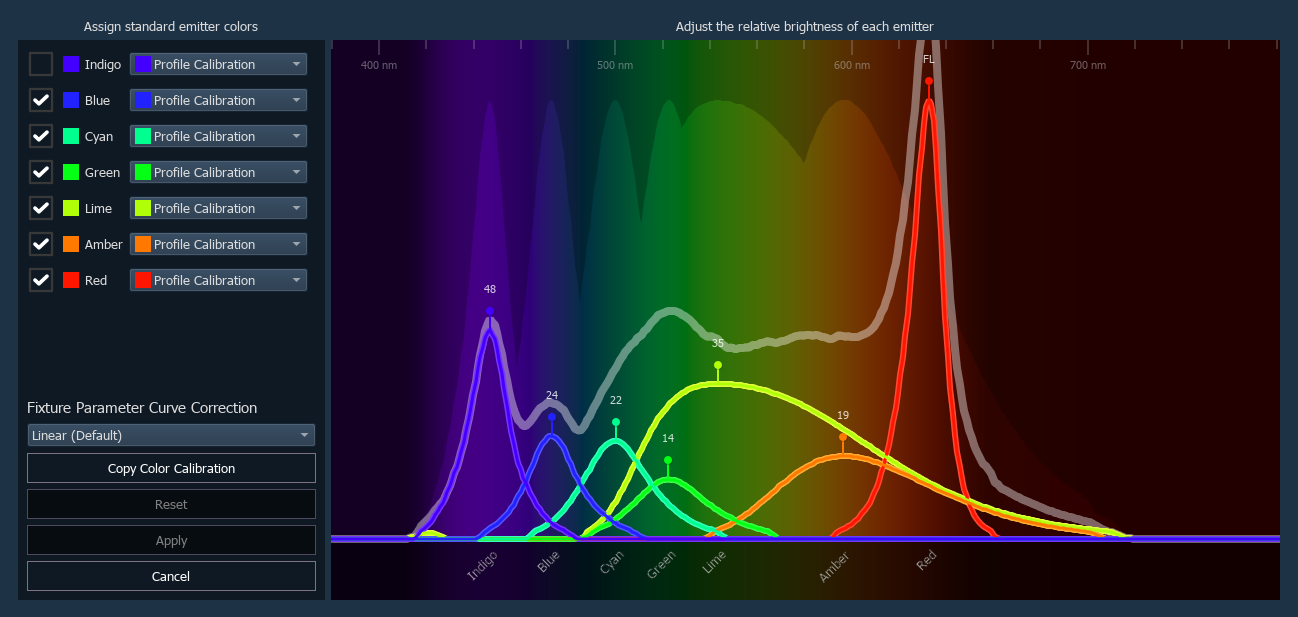
Editing Color Configuration
For accurate color control, each color parameter in an additive fixture profile needs an accurate definition of the correct emitter color, wavelength (in nanometers), and relative brightness compared to the brightest emitter in the fixture.
The following options are available:
- Colors - a list of each color parameter present in the fixture profile.
- Wavelengths - the dropdown menus beside each color allow you to choose the correct wavelength for that parameter.
- Brightness - the sliders on the right allow you to adjust the relative brightness of each color.
Color parameters can be excluded from color mixing by deselecting the box to their left. Excluded parameters can still be controlled directly, and none of their stored data will be cleared. UV parameters are deselected by default.
Use the Fixture Parameter Curve Correction dropdown to choose between Linear (Default) and Quadratic curves.
Color Configuration Data
The data required for color configuration can originate from a variety of sources.
Calibrated
Calibrated color configuration data has been gathered using lab-quality equipment and measuring techniques. This generally provides higher quality color picking and gel matching.
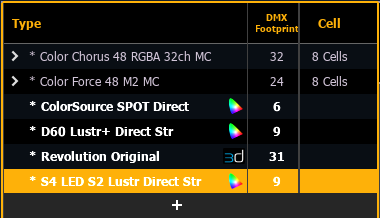
Fixture profiles with calibrated color configuration are indicated in the fixture profile editor with a CIE icon.
Color calibration data can be copied between fixture profiles using {Copy Color Calibration}, selecting the destination fixture from the pop-up list.
Manufacturer
This type of color configuration data is provided by the fixture's manufacturer and can be manually entered into the profile via the color configuration editor. The quality of this data, and the subsequent color performance of the fixtures that use it, will depend on the quality of the manufacturer's initial measurement process.
Field Survey
There are a variety of ways to measure a fixture's color information with tools in the field. The fixture profile can then be updated with the gathered configuration data.
Default
If a fixture profile has none of the above types of color configuration data, Eos will create an auto-generated configuration based on the fixture's color parameters.
Legacy Color Calibration
If a pre-v3.2.0 show file with additive color RGB and RGBA fixtures is opened, Eos will automatically simplify the color calculations being used for those fixture profiles. This can greatly improve fixture performance and speed for use in pixel maps.
These fixture profiles can be updated via the color configuration editor to get the full set of color configuration tools.
CAUTION: Updating a fixture profile or library will update all legacy calibration.