
Sounds Tab
The "Sounds" tab of the Resource Library allows you to add sounds that can be associated with functions of controls. Sounds are primarily associated with button presses on button skins and fader skins that use buttons for raise and lower.
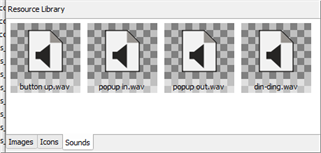
The resource's properties are displayed in the Resource Editor.
Note: Sound resources are supported as 8 or 16-bit stereo .wav files with 8 kHz, 11 kHz, 22 kHz, or 44 kHz sampling rate.
Tip: A master volume control is provided in the setup menu of the Paradigm Touchscreen to adjust volume levels. It is recommended that all audio resources used be normalized to a common volume level.
Using the Sounds Tab
Add or Remove a Resource
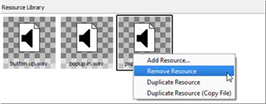
To add one or more sound resources, drag and drop an audio file from a local folder into the sounds tab or right-click in the library and select "Add Resource..." from the context menu. An "Add Sound" dialog will display for selection of the sound file.
To remove a sound resource, select the sound in the library and press (Delete) from your alphanumeric keyboard or right-click on the sound and select "Remove Resource" from the context menu.
CAUTION: Removing a resource will remove it from ALL skin elements that use it.
Duplicate Resource
To duplicate a sound resource, right click on an existing resource image in the Resource Library and select "Duplicate Resource" or "Duplicate Resource (copy file)" from the context menu.
Sound Resource Properties
- File - the path to the resource
- Name - the name of the resource. The name appears in ControlDesigner for selection and should be descriptive of what the sound resource actually represents.