Menu Operations
File menu
Create a New Theme
A new theme can be created from within ThemeDesigner Software using any of the following methods:
- select File>New
- click the New icon
 located in the toolbar
 - use keyboard shortcut (Ctrl) + (N)
Open an Existing Theme
An existing theme can be opened from within ThemeDesigner Software using any of the following methods:
- select File>Open
- click the Open icon
 located in the toolbar
 - use keyboard shortcut (Ctrl) + (O)
Save a theme
A theme can saved using any of the following methods:
- select File>Save
- click the [Save] icon located in the toolbar
- use keyboard shortcut (Ctrl) + (S)
Themes included with ControlDesigner Software are read-only and cannot be overwritten. If you have modified a standard theme in ThemeDesigner Software, it is imperative that you save with a different file name. This is very important to avoid confusion over which theme is the standard. It is also recommended that you save your own (custom) themes to the Paradigm/themes folder within My Documents rather than the Common/themes installation directory. Following this protocol will provide for easier access to the custom theme file for email and transferring to media.
To save the current theme as a new theme file:
- select File>Save As
Note: Subsequent save operations while this theme is open in ThemeDesigner Software will be saved to the new filename.
Exit to ControlDesigner Software
Close ThemeDesigner Software and return to ControlDesigner Software:
- select File>Exit to ControlDesigner
Note: If the theme has unsaved modifications, you will be prompted to save or discard the changes. If you are unsure, you can terminate the close operation by choosing [Cancel] at this prompt. If canceled, ThemeDesigner Software will remain open and no unsaved modifications are discarded. Alternatively, you can close ThemeDesigner Software by clicking the close button  in the top right corner of the application.
Tip: Selecting "Exit" from the (File) menu will exit both ThemeDesigner Software and ControlDesigner Software.
Preferences
ThemeDesigner Software preferences are available to select an image editor (external image editing software) that will be used by default. In addition, the "Show scaling type of image resources in resource library" checkbox is provided.
Image Editor
- Click the browse button to display the "Select an image editor" dialog.
- Browse to and select the *.exe file for the image editing application that you want ThemeDesigner Software to use when editing an image.
Scaling type
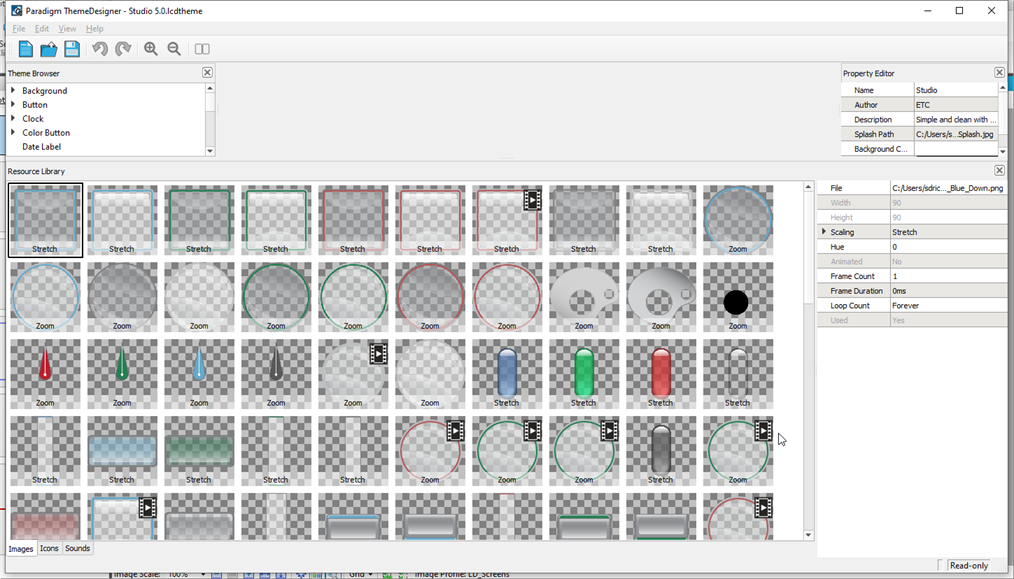
If the Property Editor has "Show scaling type of image resources in the resource library" selected, each configured resource will display in the library with stretch, zoom, and scale resources.
Exiting ThemeDesigner and ControlDesigner
To quit both applications:
- Select File>Exit
If the theme has unsaved modifications, you will be prompted to save or discard the changes. If you are unsure, you can terminate the close operation by choosing [Cancel] at this prompt. If canceled, ThemeDesigner Software will remain open and no unsaved modifications are discarded.
Edit Operations
Undo and Redo
Mistakes can be made while working in a theme. If a mistake is made, changes to a theme can be undone or redone by using any of the following methods:
- Select Edit>Undo or Edit>Redo
- click the [Undo] or [Redo] button in the toolbar
- use keyboard shortcut (Ctrl) + (Z) for Undo or (Ctrl) + (Y) for Redo
Note: The undo/ redo history is cleared when a new theme is opened or when ThemeDesigner Software is closed.
Cut, Copy and Paste
Additional tools found in the (Edit) menu include, "Cut", "Copy" and Paste.
- "Cut" - a tool used to remove selected text or a selected object from its current location. Alternatively, you may use keyboard shortcut (Ctrl) + (X).
- "Copy" - a tool used to copy selected text or a selected object for later pasting in a different location. Alternatively, you may use keyboard shortcut (Ctrl) + (C).
- "Paste" - a tool used to paste text or an object that was previously cut or copied to the clipboard. Alternatively, you may use keyboard shortcut (Ctrl) + (V).
Remove Unused Resources
The "Remove Unused Resources" feature deletes any resources in the library that are not currently used in the theme.
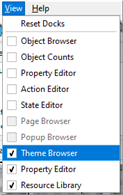
View Operations
The (View) menu allows you to reset the docks to their default location as well as show or hide docks within the application. These tools are useful to reset the docks if you are having trouble locating them.